
Exam preparation guides for your TI

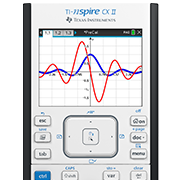
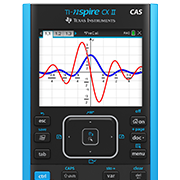


Resetting All Memory
Resetting the calculator’s memory restores default settings and permanently removes all user-saved data.
Resetting all memory instructions
Press-to-Test Mode
Temporarily block access to the calculator’s existing programs, documents, files, data, applications and pictures

Additional Help
Download the product guide for more detailed information on how to use the TI-Nspire™ CX II graphing calculator.
View the TI-Nspire ™ eGuide IMPORTANT: Resetting all memory permanently deletes all user-saved data. To keep any files or user-saved data you want to reuse, back up your TI-Nspire™ CX II handheld to a computer before resetting.
You can back up and restore files using
You can also use
Before the exam

Step 1:
Press [home/on] to display the home screen.
Then press [2] Browse to open the “My Documents” file browser.

Step 2:
Press [menu] to open the context menu.
Select C: Delete All.

Step 3:
The “Delete All” dialog box will open.
Select OK to confirm you want to permanently delete all stored data.

Step 4:
The calculator is reset to factory default settings.
Select OK to complete.
Please note: Calculator screens may vary slightly by model and operating system.
After the exam
Once the exam is completed, repeat steps 1–4 to ensure any data entered/saved during the exam is permanently deleted.
Before the exam: Enabling Press-to-Test Mode.

Step 1:
Ensure the handheld is turned off.
Press [ctrl] [off] keys.

Step 2:
Press and hold [esc] and [home/on] keys simultaneously until the “Press-to-Test” screen is displayed.
Step 3:
All restrictions are enabled by default. To deselect a restriction, scroll to and highlight it using the arrow keys or [tab] key, then press center click on the touchpad. Do not press the [enter] key. To deselect all restrictions, press [ctrl] [A].

Step 4:
To enable Press-to-Test Mode with your selected restrictions, press [tab] to highlight the Enter Press-to-Test command. Press [enter].

Step 5:
The calculator will reboot and confirm your selected restrictions. Select OK to continue to home screen.

Step 6:
When Press-to-Test Mode is enabled, the lock icon is displayed in the upper right corner of the home screen.

An LED near the handheld’s mini USB port will:
- Flash green to indicate all restrictions are enabled.
- Flash amber to indicate one or more restrictions have been deselected.
Between exams: Resetting Press-to-Test Mode
Step 1:
Ensure the handheld is turned off.
Press [ctrl] [off] keys.

Step 2:
Press and hold [esc] and [home/on] keys simultaneously until the “Press-to-Test” screen is displayed.
With Reset Press-to-Test highlighted, press [enter] to initiate the reset.

Step 3:
When complete, a verification screen will appear. Press OK to continue.
After the exam: Exiting Press-to-Test Mode

Step 1:
Connect the TI-Nspire™ CX II handheld to a second handheld using the USB unit-to-unit cable.*

Step 2:
Press [home/on] to display the home screen. Then press [2] Browse to open the “My Documents” file browser.

Step 3:
Press [doc] and select 9: Press-to-Test. Press [enter].

Step 4:
Select 1: Exit Press-to-Test and press [enter]. The calculator will reboot in normal mode and all stored data created while in Press-to-Test Mode will be permanently deleted.
*Note: You can also use TI-Nspire™ CX II Connect to exit Press-to-Test Mode by visiting
nspireconnect.ti.com/nsc
Please note: Calculator screens may vary slightly by model and operating system.
Watch these short videos to see how to enable and exit Press-to-Test Mode on your
Enable Press-to-Test Mode
Exit Press-to-Test Mode

Questions?
Contact us toll free at 1.800.TI-CARES (1.800.842.2737), email ti-cares@ti.com or visit education.ti.com/support.