
Exam preparation guides for your TI

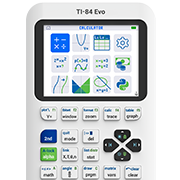
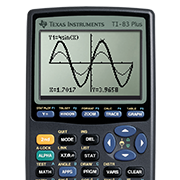

TI-84 Evo graphing calculator
You can prepare your TI-84 Evo graphing calculator for exams by either resetting all memory or enabling

Resetting all memory
Resetting the calculator’s memory restores default settings and permanently removes all user-saved data.

Press-to-Test Mode
Clear the calculator’s memory and temporarily block access to existing data, programs, and apps.
Press-to-Test: Disable Apps
Press-to-Test: Apps Enabled
Reset Press-to-Test
Exit Press-to-Test

Additional help
Explore the user guide for more detailed information on how to use the TI-84 Evo graphing calculator.
 Important: Prior to resetting, back up your TI-84 Evo to a computer using the TI Connect™ Evo software application so you can restore it afterward.
Before the exam
Please note: Screens may vary slightly by Operating System (OS) version.

Step 1:
Press a Ó to display the MEMORY menu.

Step 2:
Select 7: Reset to access the RESET menu.

Step 3:
Press › › and select

Step 4:
Select 2: Yes to erase all data and programs. Factory defaults are reset.

Step 5:
MEM Cleared is displayed on the screen.

Step 6:
Home screen appearance after resetting all memory.
Note: Applications that are built in and cannot be deleted, remain on the Icon Home screen.
Repeating all the steps will reset the memory again and ensure that any information entered or saved during the exam is
To reinstall Apps after the exam, use the OS update tool in the TI Connect Evo online application.
Note: Use TI Connect Evo online to back up your TI-84 Evo graphing calculator prior to preparing it for an exam (resetting all memory) and to restore
Exam preparation for Press-to-Test Mode: Disable Apps
Use this method for exams that permit stored data and/or select calculator features to be temporarily blocked, not permanently deleted. The stored data and features can be unblocked after the exam.
Note: All Apps will be disabled, with the exception of the Calculator, Y= Function Editor, List Editor, Mode Settings, Numeric Solver, Finance, TI-Basic, and Help Apps. These are built in and will remain after Press-to-Test is initiated. Also, screens may vary slightly by Operating System (OS).
Before the exam

Step 1:
Ensure the calculator is turned off a Ò.
Step 2:
Press and hold the ‹, ›, and * keys simultaneously.

Step 3:
Release all three keys and the TEST MODE SETUP will open
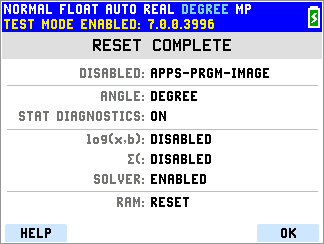
By default, ANGLE is set to DEGREE, STAT DIAGNOSTICS is ON, DISABLE log(x,b) and summation are set to YES, and DISABLE SOLVER is set to NO. To change options, use arrow keys to navigate to the desired setting and press =.
Step 4:
Select START by pressing the f, g, or h key.

Step 5:
When the RESET COMPLETE screen appears, select OK by pressing the h key.

Step 6:
The calculator Home screen will appear. Applications not accessible while in test mode are grayed out.
Exam preparation for Press-to-Test Mode: Apps Enabled
Use this method for exams that permit stored data and/or select calculator features to be temporarily blocked, not permanently deleted. The stored data and features can be unblocked after the exam.
Note: Screens may vary slightly by Operating System (OS).
Before the exam
If the exam requires removal of selected Apps, follow these steps prior to using the Enable Apps test mode. The illustration below shows removal of the Python, Transformation Graphing, and Inequalities Graphing Apps. However, your exam may require removal of different Apps, or it may not require removal of any Apps.
Note: Several icons on the Home screen represent built-in functionalities and cannot be removed or deleted. These include the following Apps: Calculator, Y= Function Editor, List Editor, Mode Settings, Numeric Solver, Finance, TI-Basic, and Help. If your exam does not require removal of Apps, proceed to the next section.

Step 1:
With the calculator turned on, press a Ó, then select option 2: Mem Management/Delete.

Step 2:
Choose menu selection 0: Apps.

Step 3:
Highlight the App to be deleted.

Step 4:
Press the k key, then confirm deletion with menu selection
Repeat Steps 3 and 4, as needed, to remove other Apps.

When complete, the Apps that have been removed will not appear in the icon Home screen. (The Python, Transformation Graphing, and Inequalities Graphing Apps show as removed.)
Proceed to the next section to continue with the Apps Enabled test mode.

Step 1:
Ensure the calculator is turned off: a Ò.
Step 2
Press and hold q, =, and * keys simultaneously.

Step 3:
Release all three keys, and the TEST MODE SETUP screen will open.
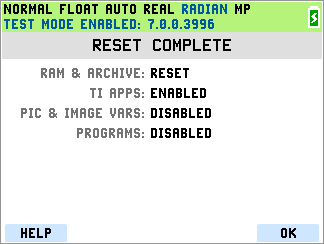
By default, the angle mode (DEGREE, RADIAN, or GRADIAN) that is selected when entering test mode will be retained. It can be adjusted afterward.
Step 4:
Select START by pressing the f, g, or h key.

Step 5:
When the RESET COMPLETE screen appears, select OK by pressing the h key.

Step 6:
The calculator Home screen will appear. Apps that are available will appear on the Home screen.

Step 1:
Turn off the calculator while in Press-to-Test Mode a Ò.
Step 2:
If using the Disable Apps test mode, press and hold the ‹, ›, and * keys simultaneously.
If using the Apps Enabled test mode, press and hold q, =, and * keys simultaneously.
Step 3:
When the RESET COMPLETE screen appears for the corresponding test mode, select OK by pressing the h key.
The calculator is now ready for the next test.
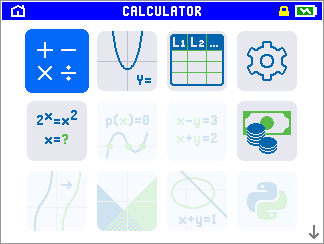
(Concluding screen for Disable Apps test mode.)
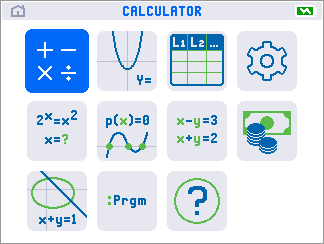
(Concluding screen for Apps Enabled, with selected Apps deleted.)
After the exam, exit Press-to-Test Mode
If the calculator will not be used in subsequent exams, exiting Press-to-Test will return user access to any programs, applications, variables, or images that were stored on the calculator prior to testing.
To reinstall Apps after the exam, use the OS update tool in the TI Connect Evo online application.

Step 1:
Connect the calculator in test mode to another TI-84 Evo with a unit-to-unit

Step 2:
On the calculator that is in test mode, press a. then Ç.

Step 3:
Press the left or right arrow keys to select the TEST MODE tab.
Press the = key to select option

Step 4:
Return to the Home screen to confirm that the device is restored with full access to Apps.
Exit Press-to-Test Mode: Alternate method
Step 1:
Plug your TI-84 Evo into a computer using the computer-to-calculator USB cable included with your calculator.
Step 2:
Visit the TI Connect Evo online application at connectevo.ti.com.
Step 3:
Select the EXIT TEST MODE tool, and then select EXIT TEST MODE.
Note: To reinstall apps after the exam, use the OS update tool in the TI Connect Evo online application..

Questions or need assistance?
Contact TI-Cares™ customer support via the online form or by phone at 1.800.TI.CARES (1.800.842.2737).