
Exam preparation guides for your TI

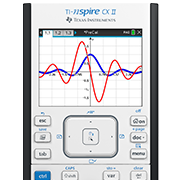
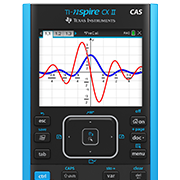
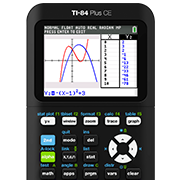
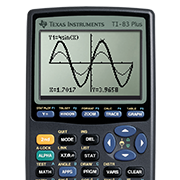
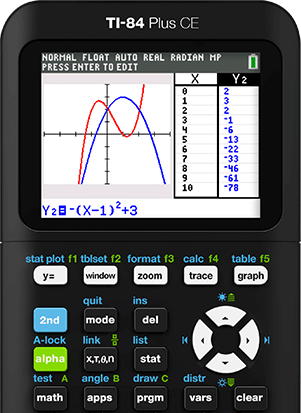
TI-84 series
Prepare your TI-84 series calculator for exams using two methods:
Resetting All Memory and/or Enabling Press-to-Test Mode.
The TI-84 series includes the following models:

Resetting All Memory
Resetting the calculator’s memory restores default settings and permanently removes all programs and apps.

Press-to-Test Mode
Clear the calculator’s memory and temporarily block access to existing data, programs and apps.

Additional Help
Download the product guide for more detailed information on how to use the
 IMPORTANT: Resetting all memory permanently deletes all user-installed applications from the calculator. Back up your TI-84 series handheld to a computer before resetting to restore applications after the exam.
(Note: The Finance App is permanently built in and will not be deleted after a reset.)
Use TI Connect™ CE software to back up any existing applications and restore them after an exam. When prepping multiple calculators, designate one handheld as the “primary” source device.
Visit education.ti.com/ticonnectce to download the free connect software and/or product guidebook.
Before the exam

Step 1:
Press [2nd] [mem] to display the MEMORY menu.

Step 2:
Select 7: Reset to access the RESET menu.

Step 3:
Press [>] [>] and select 1: All Memory.

Step 4:
Select 2: Reset to permanently delete all data, programs and apps.

Step 5:
MEM Cleared is displayed to confirm the calculator has been reset to default settings.
Please note: Calculator screens may vary slightly by model and operating system.
After the exam
Once the exam is completed, repeat steps 1–5 to ensure any data entered/saved during the exam is permanently deleted.

Step 1:
Press [2nd] [MEM] and select

Step 2:
Under the RAM menu, select 1: All RAM.

Step 3:
On the RESET RAM screen, select 2: Reset.

Step 4:
When complete, RAM Cleared will be displayed.
Before and after exams
Repeat steps 1-4 to ensure any data entered/saved during exam sessions is permanately deleted and the calculator is ready for the next student.

Step 1:
Press [2nd] [MEM] and select

Step 2:
Under the ARCHIVE menu, select 1: Vars.

Step 3:
On the RESET ARC VARS screen,

Step 4:
When completed, Arc Vars Cleared will be displayed.

Step 1:
Press [2nd] [MEM] and select 2: Mem Management/Delete.

Step 2:
Select A: Apps...

Step 3:
The list of apps will appear. Scroll to the app you want to delete and

Step 4:
The prompt “Are You Sure?” will appear to confirm your choice. Select 2: Yes.

Step 5:
Repeat steps 3 and 4 for each app you want to delete.
Before the Exam: Enabling Press-to-Test Mode

Step 1:
Ensure the handheld is turned off. Press [2nd] [off] keys.
Step 2:
Press and hold [<] [>] and [on] keys simultaneously, then release. The RESET OPTIONS screen will appear.

Step 3:
By default, ANGLE is set to DEGREE, STAT DIAGNOSTICS is set to ON, and DISABLE logBASE and DISABLE Σ are set to YES.
To change these options, use the ARROW keys to navigate to the desired setting, then press [enter].

Step 4:
Press OK [zoom] to enable your selections.

Step 5:
The RESET COMPLETE screen will appear. Press any key to continue.

Step 6:
Press [apps] to confirm that applications are disabled.

Step 7:
Press [prgm] to confirm that programs are disabled.
Between exams: Resetting Press-to-Test Mode

Step 1:
Turn off the calculator while in Press-to-Test Mode by pressing [2nd] [off].
Step 2:
Press and hold [<] [>] and [on] keys simultaneously

Step 3:
The RESET COMPLETE screen will appear. Press any key to continue.
After the exam: Exiting Press-to-Test Mode

Step 1:
Connect the calculator to a second TI-84 series calculator with the I/O unit-to-unit
Step 2:
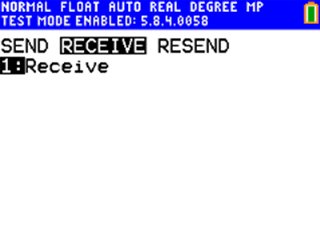
On the RECEIVING calculator, press [2nd] [link] to open the SEND RECEIVE screen. Use the [>] to highlight RECEIVE and press [enter].
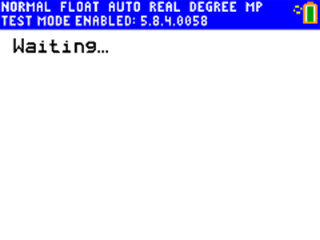
The calculator will show WAITING.
Step 3:
On the SENDING calculator, press [2nd] [link] to open the SEND RECEIVE screen. SEND will be highlighted. Select 4: List.
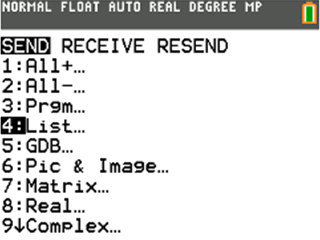
Then press [enter] to select L1.
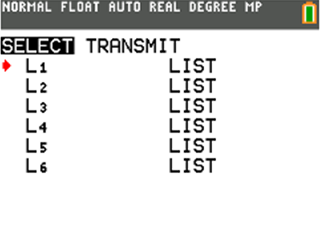
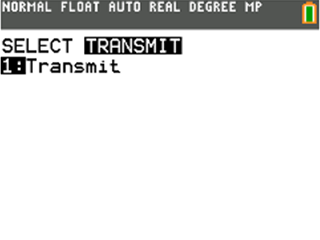
Use the [>] to select TRANSMIT and press [enter]. then [1] to transmit.
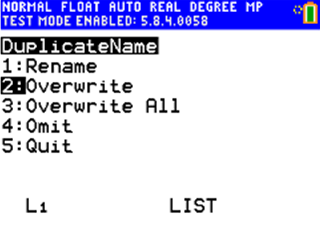
Step 4:
On the RECEIVING calculator, select 2: Overwrite and press [enter].
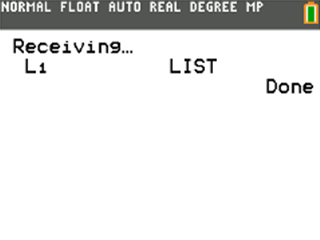
DONE will appear on both calculator screens.
*Note: You can also use TI Connect™ CE Software to exit Press-to-Test Mode by visiting
education.ti.com/connectce
Please note: Calculator screens may vary slightly by model and operating system.
Restoring Applications
Option 1:
Link the apps from a comparable TI-84 series calculator by connecting both calculators.
Option 2:
Send the app files from a computer using TI Connect™ CE software and a computer-to-calculator cable.
Option 3:
Restore the calculator using the backup file created prior to resetting.

Questions?
Contact us toll free at 1.800.TI-CARES (1.800.842.2737), email ti-cares@ti.com or visit education.ti.com/support.