
Solution 40490: Updating the Operating System (OS) on a TI-84 Evo calculator, using the TI Connect Evo web application.
What are the steps to update the Operating System (OS) on a TI-84 Evo calculator, using the TI Connect Evo web application?
TI Connect Evo is a web-based application for Windows, Mac, and Chromebook that provides connectivity between a computer and a TI-84 Evo calculator. It allows you to capture the calculator screen, transfer calculator files to and from the calculator, exit Press-to-Test, and update the Operating System (OS)
System Requirements can be found at: https://education.ti.com/en/products/calculators/graphing-calculators/ti-84-evo/ti-connect-evo
To update the OS on the TI-84 Evo:
- Go to https://connectevo.ti.com/
- Make sure your TI-84 Evo calculator is connected to your computer, using a USB-C cable.
- Turn the calculator [ON].
Please Note: If this is the first time using the application, click [Accept] on the privacy policy.
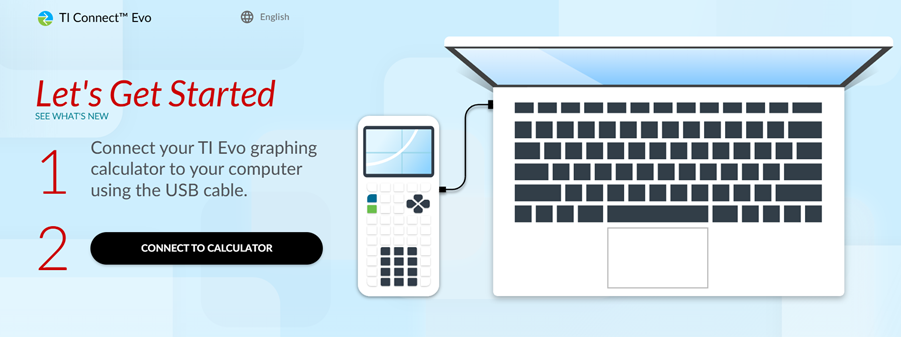
- From the TI Connect Evo "Let's Get Started" page, click on [Connect to Calculator].
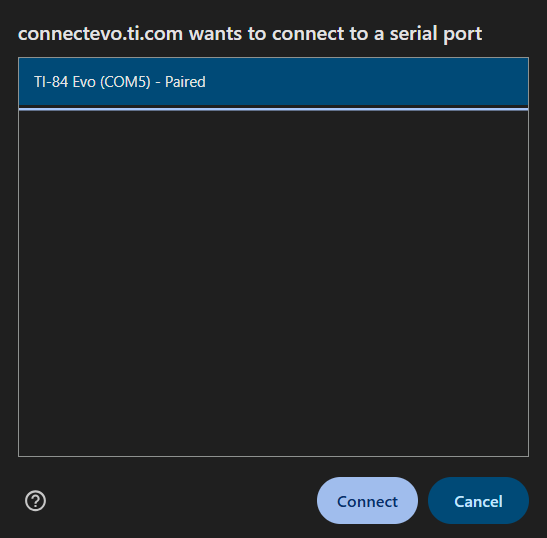
- Select your calculator and click on [Connect] to confirm.
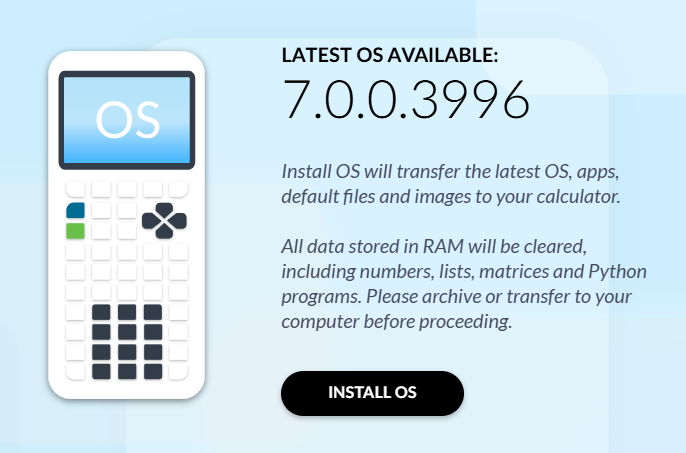
- Click on [INSTALL OS] menu option.

- The app will check the OS version on the calculator. If there is a newer version available, you will be prompted to update.
- Click the [INSTALL OS] button to proceed with the install.
- A confirmation message will appear when the update is finished
If you require additional assistance, please contact TI-Cares.