
Knowledge Base
Solution 35954: Installing Applications That Were Not Downloaded From The Macintosh® App Store
How do I open Texas Instruments software that was not purchased from the Mac App Store?
Newer versions of the Mac OS X, by default, allow only apps from the Mac App Store to be installed. Attempting to install a third party application will give you the following message:
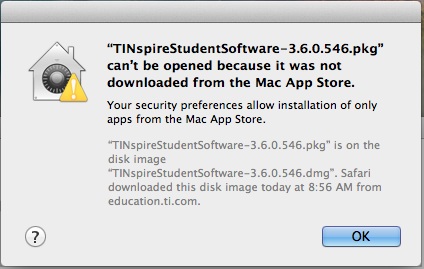
To allow installation, it will be necessary to change a security setting on your computer using the steps listed below:
For Newer Versions of macOS follow the steps below:
• Click [Apple] at the upper left of the screen and launch [System Preferences]
• On the left menu click [Privacy & Security] you many need to scroll down the list to see this option.
• After clicking this scroll down if needed to go to the [Security] section and see if you see a button that states [Open Anyway] next to the "Texas Instruments Software Name" was blocked to protect your Mac. If you see this option click [Open Anyway] to continue.
• If you do not see this option under [Allow applications from] change the option to right to [Anywhere] or if this option is not available [App Store and Identified Developers].
• After making this change try to open the Texas Instruments PKG file by holding down [CTRL] the clicking the PKG file and choosing the option to [Open] from the [Right Click] menu.
If the above fails try the following option:
• Click [Finder] then open [Applications] >> [Utilities] then [Terminal]
• In the terminal window type the text below add a [Space] after the final letter in the text:
xattr -d com.apple.quarantine
• Next take the PKG file in the DMG file you downloaded and then [Mouse Click] the PKG file and hold the mouse click down. Drag the PKG file with your mouse and hover over the [Terminal] window then let go of [Mouse Click] and the path to the PKG file will be pasted after the command.
• Net press [Enter] and you may be prompted for your password you use to login. Enter it and the software will launch.
For Older Versions of macOS follow the steps below:
• Click [Apple] at the upper left of the screen and launch [System Preferences]
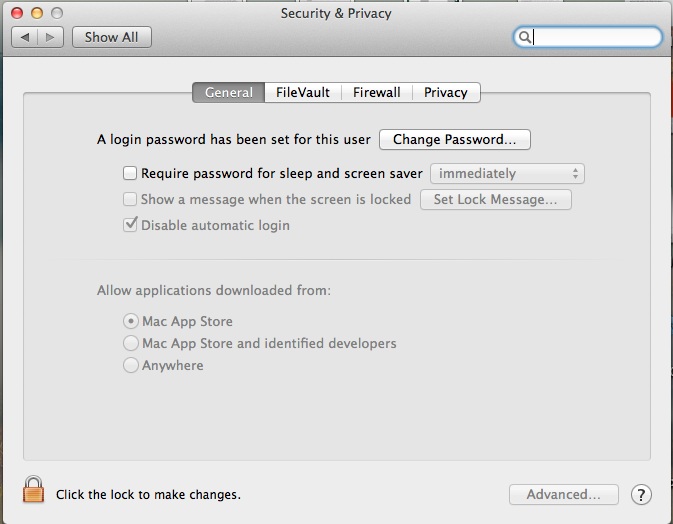
• In System Preferences select “Security and Privacy,” then click on the General tab.
 ;
;
• Click on the padlock icon in the lower left hand corner, then select the option for “Allow applications downloaded from: Anywhere.”
• You will receive a notification that this selection makes your Mac less secure. Click on the “Allow from anywhere” button.
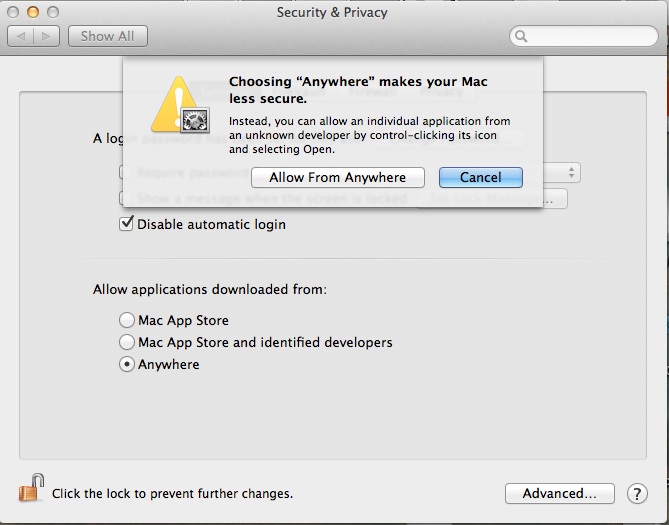
• Click on the padlock icon to lock further changes. From here, you can proceed with installation as normal. Once your software is installed, you can follow the directions above to return your installation security settings to Mac App Store if you wish.