Use the options on the Templates menu to select a format for your Notes page.
|
|
Menu Option |
Function |
|
|
|
|
|
|
|
Creates a template to enter question and answer text. |
|
|
|
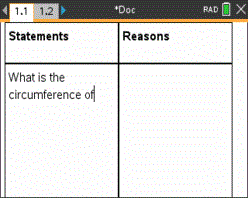
Creates a template to enter statement and reason text. |
|
|
|
Lets you type freeform text. |
|
|
|
Toggles to show or hide the Answer in a Q&A format. |
 2: Templates
 1: Q&A
 2: Proof
 3: Default
 4:Hide Answer (Q&A)
 Selecting a Template
Complete the following steps to select and apply a template:
| 1. | From the Notes menu, click  . . |
| 2. | From the menu, click the template you want to apply. |
Handheld: From the Notes work area, press b, and then press ► to display the menu options.
The Notes page is displayed in the format you selected.
Using the Q&A Template
Use the Q&A template to create questions and answers. You can show or hide the answer so you can create questions for review and hide the answers. When you use the document as a study aid, you can verify that your answers are correct.
Press Tab to move the text cursor between the Question and Answer areas of the template.
Using the Proof Template
The proof template provides an outline structure for statements and corresponding reasons.
Press Tab to move the text cursor between the Statements and Reasons areas of the template.