Math Actions are available on Notes, Scratchpad, and Calculator pages.
When you display the context menu for a selected expression or equation, the menu may include a Math Actions submenu that lists the available actions. Each action might prompt you for any needed parameters.
The specific math actions listed depend on:
| • | The type of expression or relation. |
| • | The operating system in use (Numeric, Exact Arithmetic, or CAS). |
| • | Any restrictions imposed by an active Press-to-Test session. |
Example of Math Actions in Notes
| 1. | Insert a math box, and type the equation x2+3x+1=0, but don't press Enter yet. |
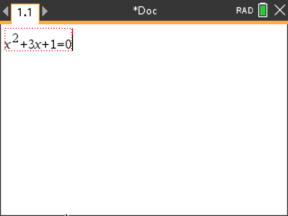
| 2. | Display the context menu of the equation, and select Math Actions. Windows®: Right-click the equation. Mac®: Hold “, and click the equation. Handheld: Point to the equation, and press / b. |
|
|
|
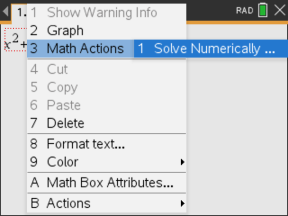

| 3. | Select the action to perform: |
| - | Solve Numerically for Numeric and Exact Arithmetic OS. |
| - | Solve for CAS OS. |
You are prompted to enter parameters. For example, Numeric Solve prompts for the variable of interest, initial guess, lower bound, and upper bound.
| 4. | Type a value for each parameter. When options are available, you can click an arrow to make a selection. |
|
|
|
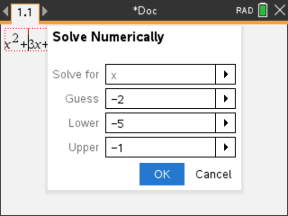

| 5. | Click OK to construct the completed expression and place it in the math box. |
|
|
|


| 6. | Press Enter to complete the action. |
|
|
|

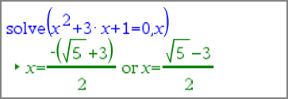
| 7. | As a further exploration, drag through the math box to select x2+3·x+1. Do not include the "=0" portion. |
|
|
|
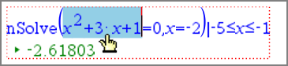

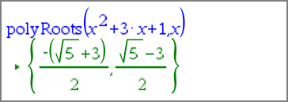
| 8. | Display the context menu for the selected text, select Math Actions > Find Roots of Polynomial, and press Enter to complete the action. |
The action and its result are shown in a new math box.
|
|
|

Tips for Using Math Actions in Notes
| ▶ | For a previously evaluated expression, click in the expression and then display its context menu. |
When you select an action, it replaces the expression.
| ▶ | For a displayed result, click in the result and then display its context menu. |
When you select an action, it appears in a new math box.
| ▶ | For a portion of an expression or result, select the portion, and then display the context menu. |
When you select an action, it appears in a new math box.