This example shows how to create a sampling distribution of sample means drawn from a given population. We will be able to watch the sampling distribution take shape for a given sample size and describe its characteristics. You can change the population and the sample size.
|
1.
|
Set up the population and the sample size. |
|
a)
|
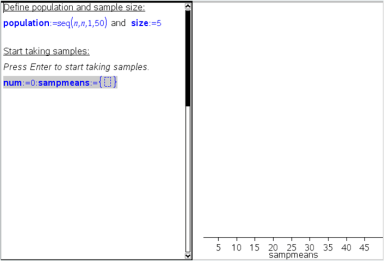
Type Create sample data: |
|
b)
|
Insert a math expression box and define the population. For example, type population:=seq(n,n,1,50). |
|
c)
|
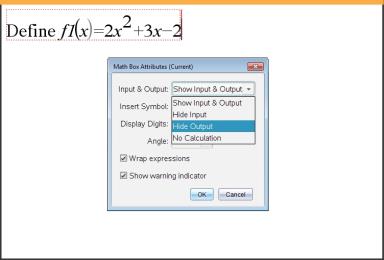
Press and hide the output using the Math Expression Box Attributes dialog box. |
|
d)
|
Insert a math expression box and define the sample size. For example, type size:=5. |
|
e)
|
Press and hide the output using the Math Expression Box Attributes dialog box. |
|
2.
|
Set up the initialization. |
|
a)
|
Type Start taking samples: |
|
b)
|
Insert a math expression box and set the initial values for the number of samples (num) and the list of sample means (sampmeans). Type: |
num:=0:sampmeans:={}
|
c)
|
Press and hide the output using the Math Expression Box Attributes dialog box. |
|
d)
|
Deactivate the math expression box using . The deactivation will prevent the content of that math box from being overwritten when the values for num and sampmeans change. The deactivated math box will be shown with the light color background. |
|
3.
|
Set up Data & Statistics for the sampling. |
|
a)
|
Change the page layout and insert Data & Statistics. |
|
b)
|
Click on the horizontal axis and add sampmeans list. |
|
c)
|
Change the window setting: XMins=1 and XMax = 50. |
|
d)
|
You can also set up the plot of the mean of sample means using . |
|
4.
|
Enter the instructions to add data. |
|
a)
|
Type Create new samples: |
|
b)
|
Insert a math expression to define the sample (sample) and update the number of samples and the list of sample means. Type: |
num:=num+1:sample:=randsamp(population,size):
sampmeans:=augment(sampmeans,{mean(sample)})
|
c)
|
Press , hide the output, and turn off the expression wrapping using the Math Expression Box Attributes dialog box. |
|
d)
|
Deactivate the math expression box using to prevent the contents of the math box from changing when num and sampmeans values are reinitialized. |
|
e)
|
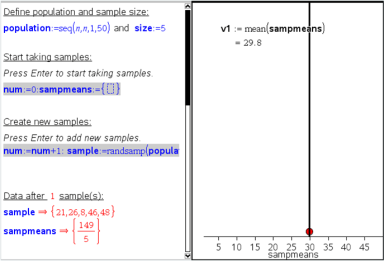
Create math expression boxes that display the current number of experiments (num), sample (sample), and the list of sample means (sampmeans). |
|
5.
|
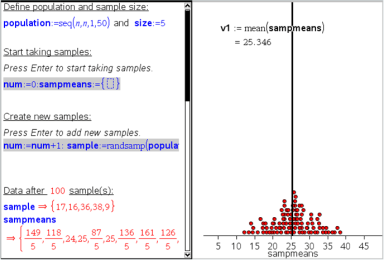
Now you are ready to explore. Add more samples by simply pressing when you are in the math expression box in the "Create new samples" section. |
Note: You can also automate the sampling process by using a loop.
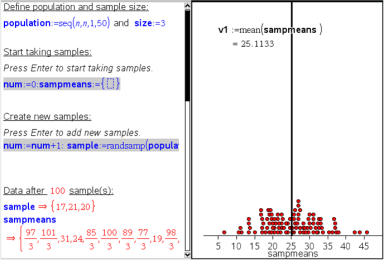
You can also change the sample size and restart the sampling.
 Example #1: Using Notes to Explore Roots of a Quadratic Function