Use the Replay option to playback the data collection. This option lets you:
| • | Select the data set you want to replay. |
| • | Pause the playback. |
| • | Advance the playback by one point at a time. |
| • | Adjust the playback rate. |
| • | Repeat the playback. |
 Selecting the Data Set to Replay
You can replay one data set at a time. By default, the latest data set plays using the first column as the base column (example: time reference).
If you have multiple data sets, and want a different data set or base column than the default, you can select the data set to replay and the base column.
To select the data set to replay:
| 1. | Click Experiment > Replay > Advanced Settings. |
The Advanced Replay Settings dialog box opens.
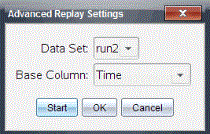
| 2. | Select the data set to replay from the Data Set drop-down list. |
Note: Changing the run in the Data Set selection tool does not affect the playback choice. You must specify which data set in Experiment > Replay > Advance Settings.
| 3. | (Optional) Select a new value from the Base Column drop-down list. |
The selected column acts as the “Time” column for the replay.
Note: The base column should be a strictly increasing list of numbers.
| 4. | Click Start to start the playback and save the settings. |
Note: Data Set and Base Column options are based on the number of stored runs and the sensor type used.
Starting and Controlling the Playback
| ▶ | Select Experiment > Replay > Start Playback. |
Playback begins, and the Data Collection Control buttons change to:
|
|
Pause |
|
|
Resume |
|
|
Stop |
|
|
Advance by One Point (enabled only during pause) |


 Adjusting the Playback Rate
To adjust the playback rate:
| 1. | Select Experiment > Replay > Playback Rate. |
The Playback Rate dialog box opens.
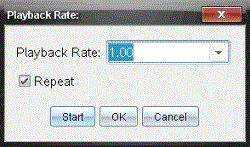
| 2. | In the Playback Rate field, click ▼ to open the drop-down list. |
| 3. | Select the rate at which the playback will play. |
Normal speed is 1.00. A higher value is faster, and a lower value is slower.
| 4. | Select one of the following options: |
| • | Click Start to start the playback and save the settings. |
| • | Click OK to save the settings for use on the next playback. |
Repeating the Playback
| 1. | Select Experiment > Replay > Start Playback. |
| 2. | Click Start to start the playback and save the settings. |