Data markers give you a way to emphasize specific data points, such as when you change a condition. For example, you might mark a point at which a chemical is added to a solution or when heat is applied or removed. You can add a marker with or without a comment, and you can hide a comment.
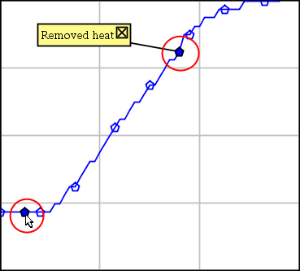
Two data markers, one with a comment displayed

Marker shown as red triangle in Table view
 Adding a Marker During Data Collection
| ▶ | Click Add Data Marker  to place a marker at the current data point. to place a marker at the current data point. |
Adding a Marker After Collecting Data
| 1. | In Graph or Table view, click the point at which you want a marker. |
| 2. | Click Add Data Marker . |

| 3. | Complete the items in the dialog box. |
Adding a Comment to an Existing Marker
| 1. | In the Detail view, click to expand the list of markers for the data set. |
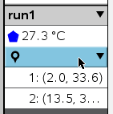
| 2. | Click the entry for the marker that you want to change, and complete the items in the dialog box. |

Repositioning a Data Marker
| 1. | Click to expand the list of markers in the Detail view. |
| 2. | Click the entry for the marker that you want to change. |
| 3. | In the dialog box, type a new value for Mark Value at. |
Moving a Data Marker's Comment in the Graph View
| ▶ | Drag the comment to move it. The connecting line remains attached to the data point. |
Hiding/Showing a Data Marker's Comment
| ▶ | Hide a comment by clicking the X at the end of the comment. |
| ▶ | To restore a hidden comment: |
| a) | Click to expand the list of markers in the Detail view. |
| b) | Click the entry for the marker that you want to change, and check Show Comment on Graph. |
Removing a Data Marker
| 1. | Click to expand the list of markers in the Detail view. |
| 2. | In the dialog box, click Remove. |