You can only print from the computer. You can print any single displayed active view, or with the Print All option:
| • | One data view. |
| • | All of the data views. |
| • | A combination of the data views. |
The Print All option has no effect on applications outside of the Vernier DataQuest™ application.
 Printing Data Views
To print a data view:
| 1. | On the main menu (top of the window), click File > Print. |
The Print dialog box opens.
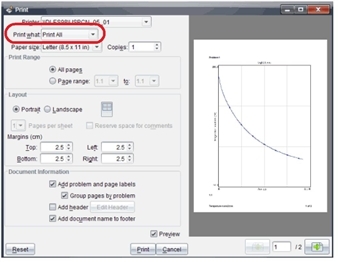
| 2. | Select Print All from the Print what drop-down list. |
| 3. | Select additional options, if needed. |
| 4. | Click Print to send the document to the printer. |
Setting Options for the Print All Feature
| 1. | Click Options > Print All Settings. |
The Print All Settings dialog box opens.

| 2. | Select the views you want to print. |
| • | Print Current View. The current view is sent to the printer. |
| • | Print All Views. All three views (Meter, Graph, and Table) are sent to the printer. |
| • | More. Only the views you select are sent to the printer. |
| 3. | Click OK. |
The Print All Settings are now complete and can be used when printing.