When you first open a new document or add a new problem to a document, you select an application from a menu.
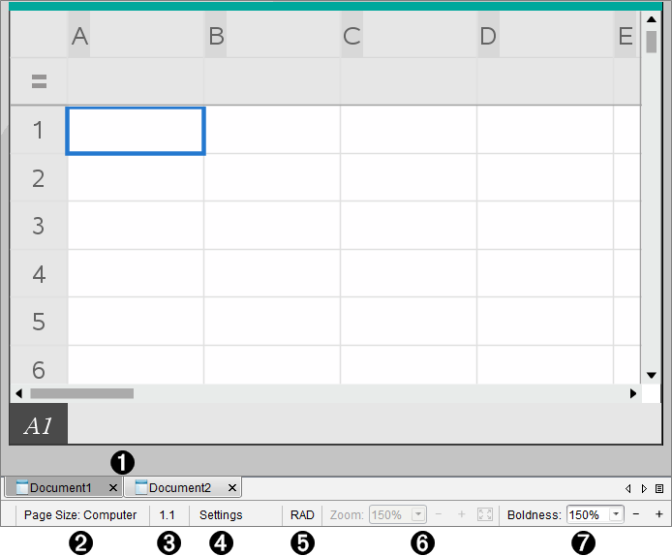
The following illustration shows how a document containing the Lists & Spreadsheet application appears in the work area.
|
À |
Document name. Tabs show the names of open documents. Click a name to make it the active document. |
|
Á |
Page Size. Shows the document's page size as Handheld or Computer. You can use the TI-Nspire™ File menu to convert a document from one page size to the other. |
|
 |
Problem/Page counter. Labels the problem number and page number of the active page. For example, a label of 1.2 identifies Problem 1, Page 2. |
|
à |
Settings. Double-click to view or change the Document Settings for the active document or to change the default Document Settings. |
|
Ä |
Angle Mode. Shows an abbreviation of the angle mode (Degrees, Radians, or Gradians) in effect. Hover the pointer over the indicator to see the full name. |
|
Å |
Zoom. Enabled in Handheld preview only (click Document Preview on the toolbar and select Handheld). Click ▼ and select a magnification value, or click the zoom-to-fit button |
|
Æ |
Boldness. Enabled in Computer preview only (click Document Preview on the toolbar and select Computer). Click ▼ and select a value to increase or decrease the boldness of text and other items. |
 to make the preview adapt automatically to window size.
Working with Multiple Applications on a Page
You can add up to four applications to a page. When you have multiple applications on a page, the menu for the active application is displayed in the Documents Toolbox. Using multiple applications involves two steps:
| • | Changing the page layout to accommodate multiple applications. |
| • | Adding the applications. |
You can add multiple applications to a page even if an application is already active.
 Adding Multiple Applications to a Page
By default, each page contains space to add one application. To add additional applications to the page, complete the following steps.
| 1. | Click Edit > Page Layout > Select Layout. |
—or—
Click  .
.
The page layout menu opens.
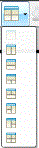
There are eight page layout options available. If an option is already selected, it is dimmed.
| 2. | Highlight the layout you want to add to the problem or page, and then click to select it. |
The new layout is displayed with the first application active.
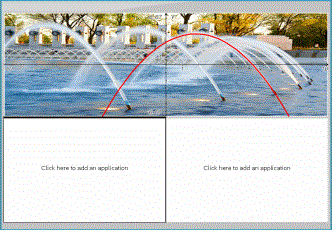
| 3. | In Handheld preview, click Press menu to select an application for each new section in the problem or page. In Computer view, select Click here to add an application. |
Swapping Applications
To change the position of applications on a page with multiple applications, “swap“ the positions of two applications.
| 1. | Click Edit > Page Layout > Swap Application. |
Note: The last active application you worked on is automatically selected as the first application to be swapped.
| 2. | Click the second application to swap. |
This action performs the swap.
Note: When there are only two work areas, the selected application automatically swaps position with the other application in the work area.
To cancel a swap, press Esc.