You can type numeric values, text, or formulas into body cells. Column formula cells can contain formulas only. (For more information, see Generating Columns of Data.)
Data Examples
|
Entry |
Remarks |
|
1.234 |
Simple numeric entry |
|
“Green” |
Text - Enclose categorical data (such as the names of colors used in a study) within quotes to distinguish them from variable names. Handheld: Press / r to enter quoted data. |
|
=a3*length |
Formula - Consists of an “=” symbol followed by an expression. You can type the expression or use the Catalog and expression templates to build it. For more information, see the Calculator section. To ensure a decimal result instead of a fraction, type one of the integers in the expression as a decimal. For example, type 1.0 instead of 1. |
 Typing a Math Expression, Text, or Spreadsheet Formula
| 1. | Double-click the cell to select it and put it in edit mode. |
Note: If the cell is already selected, you can press Enter or click the entry line.
| 2. | Type the expression, text, or formula. Be sure to enclose text entries in quotes and start formula entries with an “=” symbol. |
As you type the data, it appears in the cell and on the entry line simultaneously.
| 3. | Press Enter to complete the entry and move down to the next cell. |
—or—
Press Tab to complete the entry and move right to the next cell.
The Lists & Spreadsheet application automatically recalculates any cells that are dependent on the cell you entered. If you have shared the cell, and other TI-Nspire™ applications are linked to the cell, the other applications are also updated.
Note: Empty cells in a spreadsheet display as a void represented by an underscore (_). The underscore is automatically added to empty cells when a list is named or when an empty cell is referenced in a formula. When you plan to perform calculations on a range of cells, be sure to notice the location of void cells. Cells without a value can affect calculations. For example, if you include a void cell in the range for a sum such as “=b2+c2,” the result of the calculation is void (_).
Inserting a Cell Range into a Formula
The Select Range feature lets you insert a cell range (such as a1:b3) into a formula by selecting the range instead of typing cell addresses into an argument.
Suppose you want to calculate the mean of a range of cells.
| 1. | Select the cell that will contain the result. |
| 2. | From the Data menu, click List Math > Mean. |
An editable formula appears in the cell.
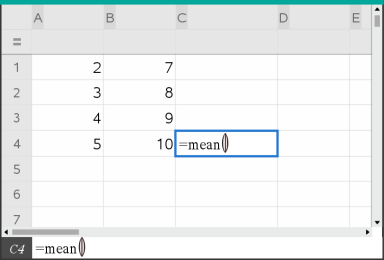
| 3. | Click Actions > Select > Select Formula Range. |
| 4. | Drag a selection rectangle around the range of values for which you want to calculate the mean. |
Handheld: Move to the first cell in the range, hold g, and press the arrow keys.
The formula is updated as you select the cells.
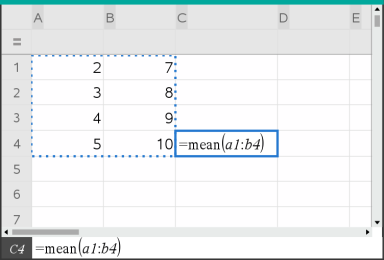
| 5. | Press Enter to complete the formula and display the result. |