Graphs & Geometry settings control how information is displayed in open problems and in subsequent new problems. When you change the Graphs & Geometry settings, the selections become the default settings for all work in these applications.
Complete the following steps to customize the application settings for graphs and geometry.
| 1. | Create a new graphs and geometry document or open an existing document. |
| 2. | In the Documents Toolbox, click  to open the Graphs & Geometry application menu. to open the Graphs & Geometry application menu. |
| 3. | Click Settings > Settings. |
The Graphs & Geometry Settings dialog box opens.
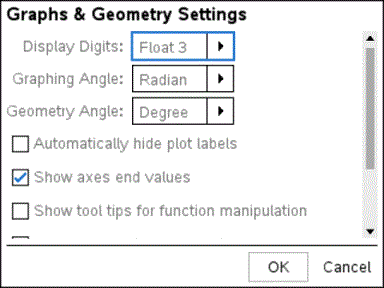
| 4. | Press Tab or use your mouse to move through the list of settings. Click ¢ to open the drop-down list to view the available values for each setting. |
|
Field |
Values |
||||||||||||
|
Display Digits |
|
||||||||||||
|
Graphing Angle |
|
||||||||||||
|
Geometry Angle |
|
| 5. | Select the desired setting. |
| 6. | Select a check box to enable an option or clear a check box to disable an option. |
|
Check box |
Operation when selected |
|
Automatically hide plot labels |
Plot labels are displayed only when selected, grabbed, or hovered. |
|
Show axis end values |
A numeric label is displayed at the least and greatest values visible on an axis |
|
Show tool tips for function manipulation |
Shows helpful information as you manipulate function graphs |
|
Automatically find a point of interest |
Shows zeros, minima, and maxima for graphed functions and objects while tracing function graphs. |
| 7. | Choose one of the following options: |
| • | To apply the settings to the open document and to Scratchpad, and to make default for new Graphs and Geometry applications, click OK. |
| • | Click Cancel to close the dialog box without making changes. |