Web Content provides links to online materials on Texas Instruments websites. You can save material found on these websites to your computer and share them using the Computer Content pane and Connected Handhelds.
Information provided for each activity includes the name of the activity, the author, the date the activity was posted, the size of the file, and the source.
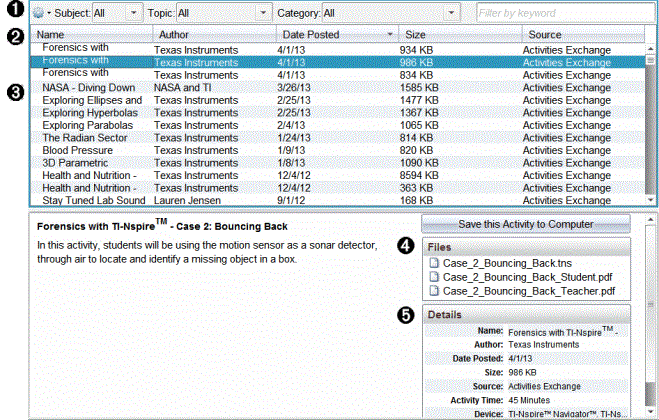
|
À |
Navigation toolbar. |
|
Á |
Column headings. |
|
 |
List of available activities. |
|
à |
List of the files contained in the activity. |
|
Ä |
Details about the selected activity. |
Note: An Internet connection is required to access Texas Instruments websites.
 Sorting the List of Activities
Use the column headings to sort the information in the list of activities. By default the list is displayed in alphabetical order by Name.
| • | Click the Name heading to list activities in reverse alphabetical order. Click the heading again to return to A to Z order. |
| • | Click the Author heading to list the activities in alphabetical order by author name. |
| • | Click the Date Posted heading to list the activities in order from newest to oldest or from oldest to newest. |
| • | Click the Size heading to list the activities according to file size. |
| • | Click the Source heading to list the activities in order by source. |
| • | Right-click the column heading row to customize displayed column headings. |
Filtering the List of Activities
By default, all available activities are listed in the Content pane. Options on the Navigation bar enable you to filter the activities by subject, topic, and category. You can also search for an activity using a keyword search.
To find all activities related to a particular subject:
| 1. | In the Subject field, click ¤ to open the drop-down list. |
| 2. | Select a subject. |
All activities related to the selected subject are listed.
| 3. | To narrow the search, click ¤ in the Topic field to view and select a topic related to the subject selected. |
| 4. | Use the Category field to narrow the search even further. Click ¤ to select a category related to the selected subject and topic. |
Using Keywords to Search for an Activity
Complete the following steps to search for an activity using a keyword or phrase.
| 1. | Type a keyword or phrase in the Filter by Keyword field. |
| 2. | Press Enter. |
All activities that contain the keyword or phrase are listed.
Opening an Activity
| 1. | Select the activity you want to open. |
| 2. | Click  , and then select Open. , and then select Open. |
The Open Activity dialog box opens with a list of all documents related to the selected activity.
You can open a .tns file in the TI-Nspire™ software. Other files such as Microsoft® Word and Adobe® PDF files open in their respective applications.
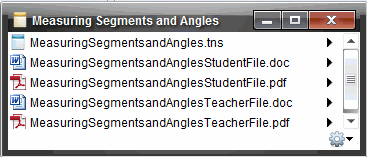
| 3. | Select the file and click ¢, and then select Open. |
| • | The .tns file opens in the Documents Workspace. |
| • | The .doc or .pdf file opens in its associated application. |
Saving an Activity to Your Computer
Complete the following steps to save an activity to your computer.
| 1. | Select the activity you want to save. The file details are displayed in the bottom half of the window. |
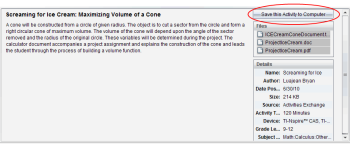
| 2. | Click Save this Activity to Computer in Preview pane, above Files. |
Note: You can also right-click on the selected activity and choose Save to Computer.
The Save Selected files dialog box opens.
| 3. | Navigate to the folder where you want to save the file. |
| 4. | Click Save. |
The activity is saved to your computer as a lesson bundle.
Copying an Activity
Complete the following steps to copy an activity. Once the activity is copied to the Clipboard, you can paste the activity into a folder on your computer, and then drag the activity to your list of shortcuts in the Local Content pane.
| 1. | Click the activity you want to copy to select it. |
| 2. | Use one of the following methods to copy the activity to the Clipboard: |
| • | Select the activity and drag it to a folder in the Local Content list. |
| • | Click  , and then click Copy. , and then click Copy. |
| • | Right-click on a file in the Files list, and then click Copy. |
| • | Click  (Copy icon), which is located in the toolbar. (Copy icon), which is located in the toolbar. |
The activity is copied to the Clipboard.
| 3. | Open a folder on your computer, and then click Edit > Paste to copy the activity to the selected folder. |