Entering Test Mode with a Test Code
Note: This applies to the TI-Nspire™ App for iPad® and the TI-Nspire™ CAS App for iPad® except where noted. If you do not know the test code, you can obtain it by using the Choose Restrictions method.
|
1.
|
Tap  and then . and then . |
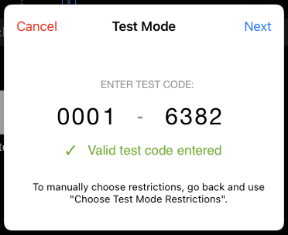
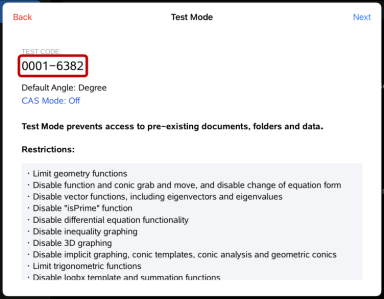
This will open the Test Mode dialog box with the TI Factory Default Code 0001-6382 entered by default.
|
2.
|
Enter your eight-digit test code. |
If the code is valid, a green checkmark will display.
When the code is validated, it is stored and will be displayed when the Enter Test code dialog is invoked again.
The same test codes are used for both the TI-Nspire™ App for iPad® and the TI-Nspire™ CAS App for iPad®, as well as TI-Nspire™ CX II handhelds and desktop software. The CAS and Exact Arithmetic Mode settings are ignored when appropriate.
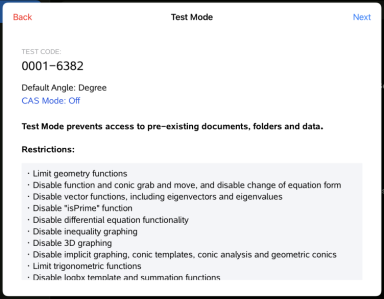
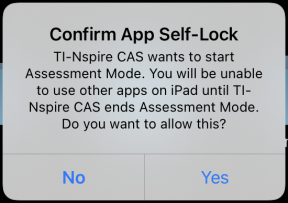
The Summary screen displays so you can review the restrictions. Tap if you need to enter a different code.
|
•
|
Pre-existing clipboard data is deleted. |
|
•
|
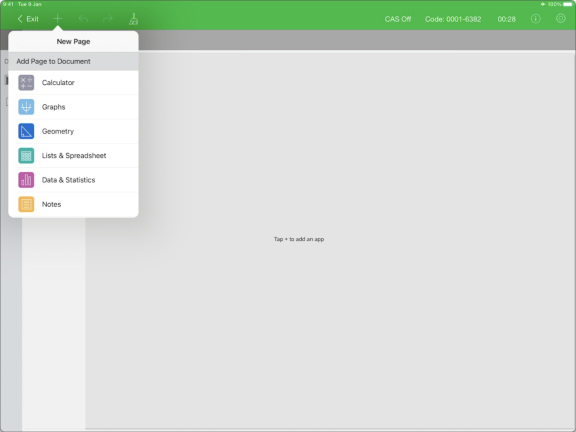
A green title bar indicates that the software is in Test Mode. It displays the Exit icon, Undo/Redo icons, Clear Document icon, the CAS or Exact Arithmetic mode status (when appropriate), Test Code, time elapsed while in the test session, the Test Mode Information icon, and the Settings icon. |
Test Code Examples
TI Factory Default Restrictions
|
•
|
Numerical Solver and Sliders are enabled |
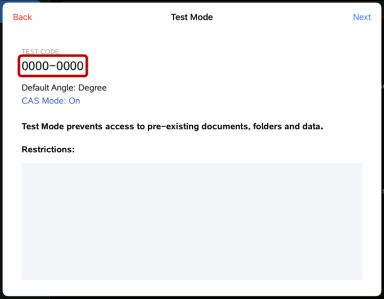
Minimum Restrictions
Maximum Restrictions
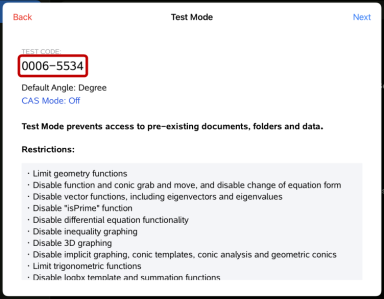
Note: Maximum restrictions Test Code will change if additional restrictions are added in the future.