Entering Test Mode by Choosing Restrictions
Note: This applies to the TI-Nspire™ App for iPad® and the TI-Nspire™ CAS App for iPad® except where noted. If you already have a test code, you can use the Enter Test Code method.
|
1.
|
Tap  and then . and then . |
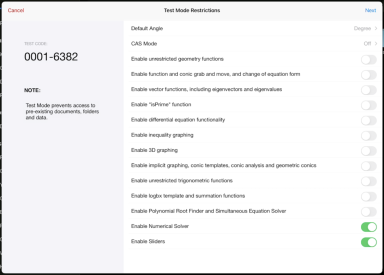
This will open the Test Mode Restrictions dialog box.
|
2.
|
Select the you wish to use. Available units are Degree and Radian. |
|
3.
|
Select the you wish to use. (TI-Nspire™ CAS App for iPad® only) |
|
•
|
enables CAS functions and symbol manipulation. |
|
•
|
enables exact results in terms of stacked fractions, p, and radicals ‡. |
|
•
|
disables CAS and exact results. |
|
4.
|
Tap the toggle switch to enable  or disable or disable  each restriction as needed. each restriction as needed. |
The Test Code will automatically update based on your selections.
Note: For a detailed list of restrictions, refer to Understanding Test Mode Restrictions.
|
•
|
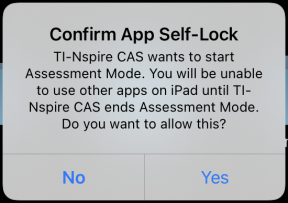
Pre-existing clipboard data is deleted. |
|
•
|
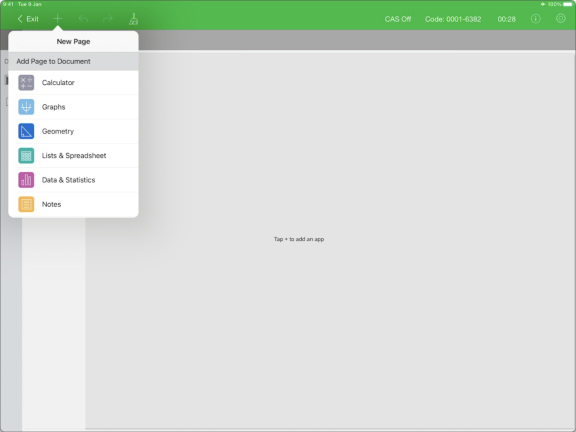
A green title bar indicates that the software is in Test Mode. It displays the Exit icon, Undo/Redo icons, Clear Document icon, the CAS or Exact Arithmetic mode status (when appropriate), Test Code, time elapsed while in the test session, the Test Mode Information icon, and the Settings icon. |