q
Use q to choose modes. Press $ # ! " to choose a mode, and < to select it. Press - or % s to return to the Home screen and perform your work using the chosen mode settings.
Default settings are shown.
|
|
|
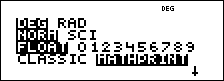
DEG RAD Sets the angle mode to degrees or radians.
NORM SCI Sets the numeric notation mode. Numeric notation modes affect only the display of results, and not the accuracy of the values stored in the unit, which remain maximal.
NORM displays results with digits to the left and right of the decimal, as in 123456.78.
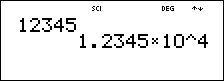
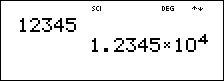
SCI expresses numbers with one digit to the left of the decimal and the appropriate power of 10, as in 1.2345678x10⁵ (which is the same as 123456.78).
Note: C is a shortcut key to enter a number in scientific notation format. The result displays in the numeric notation format set in mode.
Note: In some restricted environments (for example, data editor and the % h menu), the TI-34 MultiView™ calculator may display E instead of x10n.
FLOAT 0123456789 Sets the decimal notation mode.
FLOAT (floating decimal point) displays up to 10 digits, plus the sign and decimal.
0123456789 (fixed decimal point) specifies the number of digits (0 through 9) to display to the right of the decimal.
CLASSIC MATHPRINT
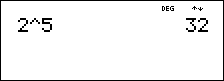
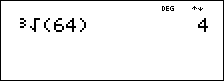
CLASSIC mode displays inputs and outputs in a single line.
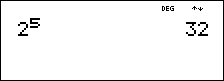
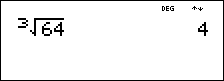
MATHPRINT mode displays most inputs and outputs in textbook format. Choose the MathPrint™ mode for better visual confirmation that math expressions have been entered correctly and to better reinforce the correct math notation.
Note: Switching the mode between Classic and MathPrint clears calculator history and the stored operations (op1 or op2) value.
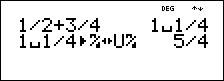
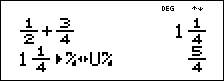
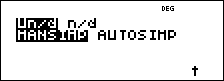
Un/d n/d Determines how fractional results are displayed. Un/d displays results as a mixed number, if applicable. n/d displays results as a simple fraction.
MANSIMP AUTOSIMP Determine whether or not a fractional result will be simplified automatically.
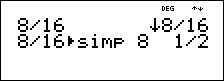
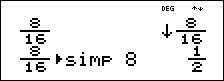
MANSIMP The user simplifies fractions manually step-by-step. » next to the resulting fraction signifies that the fraction is not yet in simplest form. See Fractions, } for details.
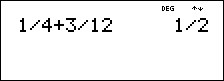
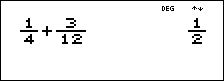
AUTOSIMP The calculator automatically simplifies fractional results to the lowest terms.
Example of Classic and MathPrint Modes
|
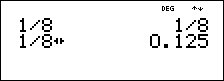
Classic mode |
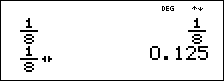
MathPrint mode |
|---|---|
|
Sci
|
Sci
|
|
Float mode and answer toggle key.
|
Float mode and answer toggle key.
|
|
Fix 2
|
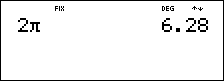
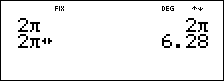
Fix 2 and answer toggle key.
|
|
n/d Un/d
|
|
|
Mansimp
|
|
|
Autosimp
|
|
|
Exponent example
|
Exponent example
|
|
Cube root example
|
Cube root example
|