q % N % j % O
In the MathPrint™ mode, fractions with q can include operation keys (T, V, etc.) and most function keys (F, % _, etc.).
In Classic mode, fractions with q do not allow operation keys, functions, or complex fractions in the numerator or denominator.
Note: In
Calculations using fractions can display fraction or decimal results, depending on input.
The TI-30XS MultiView™ calculator defaults output to improper fractions. Results are automatically simplified.
| • | q enters a simple fraction. Pressing q before or after a number can result in different behavior. Entering a number before pressing q makes that number the numerator. |
To enter fractions with operators or radicals, press q before you enter a number (in
In MathPrint mode, press $ between the entry of the numerator and the denominator.
In Classic mode, press q between the entry of the numerator and the denominator.
| • | To paste a previous entry in the denominator, place the cursor in the denominator, press % # to scroll to the desired entry, and then press < to paste the entry to the denominator. |
| • | To paste a previous entry in the numerator or unit, place the cursor in the numerator or unit, press # or % # to scroll to the desired entry, and then press < to paste the entry to the numerator or unit. |
| • | % N enters a mixed number. Press % N between the entry of the unit and the numerator. |
| • | % O converts between mixed numbers and simple fraction form. |
| • | % j converts results between fractions and decimals. |
Examples Classic mode
|
n/d, Un/d |
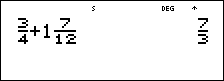
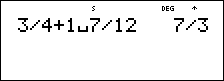
3 q 4 T 1 % N 7 q 12 < |
|
|
|
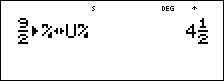
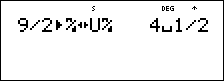
9 q 2 % O < |
|
|
|
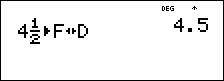
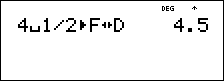
4 % N 1 q 2 % j < |
|
Examples MathPrint™ mode
|
|
q 3 $ 4 " T 1 % N 7 $ 12 < |
|
|
|
9 q 2 " % O < |
|
|
F ³ ´ D |
4 % N 1 $ 2 " % j < |
|
|
Examples ( |
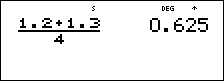
q 1.2 T 1.3 $ 4 < |
|
|
(
|
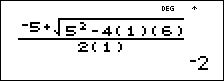
q M 5 T % b 5 F U 4 D 1 E D 6 E $ 2 D 1 E < |
|