P % @ d 1 % j
Fractions with P can include real and complex numbers, operation keys (T, V, etc.), and most function keys (F, % _, etc.).
In Classic mode or classic entries in MathPrint™ mode, the fraction bar P displays in-line as a thick bar, for example  . Use parentheses to clearly indicate the arithmetic you expect. While the Order of Operations rules will apply, you are in control of the way an expression evaluates by placing the correct parentheses in your inputs.
Fraction Results
| • | Fraction results are automatically simplified and output is in improper fraction format. |
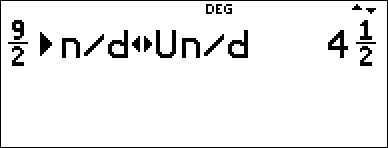
| • | When mixed number output is desired, use the 4n/d³´Un/d mixed number conversion at the end of the input expression. This feature is located in d 1: 4n/d³´Un/d. |
| • | Fraction results are obtained when the calculated value can display within the limits of the fraction format supported by the calculator and no decimal value was entered in the input expression. |
| • | If decimal numbers are used or calculated in a fraction numerator or denominator, the result will display as a decimal. Entering a decimal forces the result to display in decimal format. |
| • | Use % j (above r) on results to attempt fraction to decimal conversions within the fraction display limits offered by this numeric calculator. |
Mixed Numbers and Conversions
| • | % @ enters a mixed number. Press the arrow keys to cycle through the unit, numerator, and denominator. |
| • | d 1 converts between simple fractions and mixed-number form (4n/d³´Un/d). |
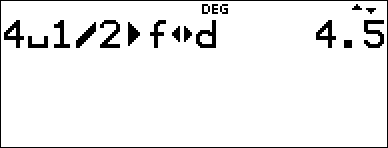
| • | % j converts results between fractions and decimals. |
MathPrint™ Entry
| • | To enter numbers or expressions in the numerator and denominator in MathPrint™ mode, press P. |
| • | Press $ or # to move the cursor between the numerator and denominator. |
| • | Pressing P before or after numbers or functions may pre-populate the numerator with parts of your expression. Watch the screen as you press keys to ensure you enter the expression exactly as needed. |
On the Home Screen
| • | To paste a previous entry from history in the numerator or mixed number unit, place the cursor in the numerator or unit, press # to scroll to the desired entry, and then press < to paste the entry to the numerator or unit. |
| • | To paste a previous entry from history in the denominator, place the cursor in the denominator, press % # to jump into history. Press # to scroll to the desired entry, and then press < to paste the entry to the denominator. |
Evaluation of Your Expression
| • | When < is pressed to evaluate your input expression, parentheses may be displayed to clearly indicate how it was interpreted and calculated by the calculator. If it is not what you expected, copy the input expression and edit as needed. |
Classic Mode or Classic Entry
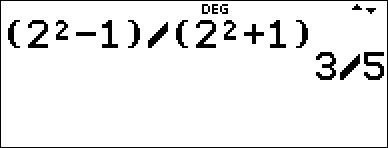
| • | If the cursor is in a classic entry location, enter the numerator expression enclosed by parentheses, then press P to display the thick fraction bar, and then enter the denominator expression also enclosed with parentheses for the result to be calculated as you expect for your problem. |
Examples in MathPrint™ Mode
|
n/d, Un/d |
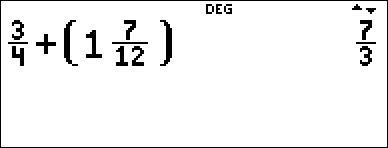
P 3 $ 4 " T 1 % @ 7 $ 12 < Note: Parentheses are added automatically. |
|
|
4n/d³´Un/d |
9 P 2 " d 1 < |
|
|
f³´d |
4 % @ 1 $ 2 " % j < |
|
|
Example |
P 1.2 T 1.3 $ 4 < Note: Result is decimal since decimal numbers were used in the fraction. |
|
|
Example |
P M 5 T % b 5 F U 4 ( 1 ) ( 6 ) $ 2 ( 1 ) < |
|


Examples in Classic Mode
|
n/d, Un/d |
3 P 4 T 1 % @ 7 P 12 < |
|
|
4n/d³´Un/d |
9 P 2 d 1 < |
|
|
f³´d |
4 % @ 1 P 2 % j < |
|
|
Parentheses |
( 2 F U 1 ) P ( 2 F T 1 ) < |
|