Note: This feature is optional. TI does not save any of your user data if you sign in with Google.
To use your Google Drive account to save screenshots or transfer .tns files
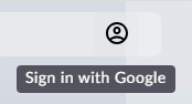
| 1. | Click the Sign in with Google icon on the top right part of any page. |
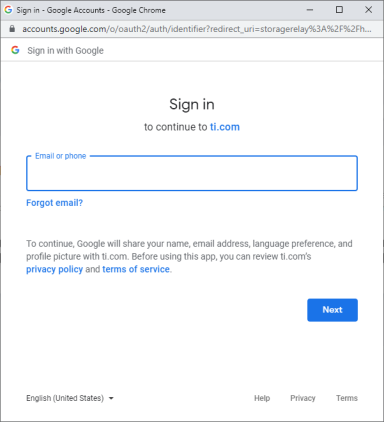
| 2. | On the Sign in with Google popup window, complete the sign in process to connect to Google Drive. |
| 3. | When prompted on the standard Google Account dialog, select the checkbox for the option to grant the app access to your Google Drive for transferring files to or from your computer. |

After signing successfully, the sign in icon will have a green checkmark and can then be used to sign out of your Google Drive account.

Note: When using Google Drive for screen captures or file transfers, you must create the folder(s) you want to use in Google Drive first.
Disconnecting TI-Nspire™ CX II Connect from Google Drive
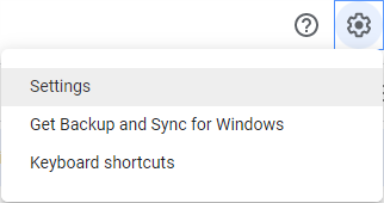
| 1. | In Google Drive, click the settings icon and select Settings. |
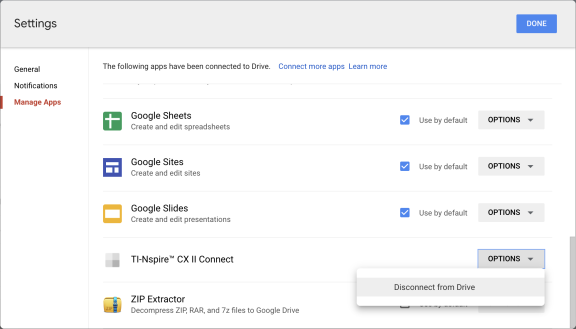
| 2. | On the Settings dialog, click Manage Apps. |
| 3. | Locate the TI-Nspire CX II Connect app in the list and then click OPTIONS > Disconnect from Drive. |
| 4. | On the confirmation dialog, click DISCONNECT. |
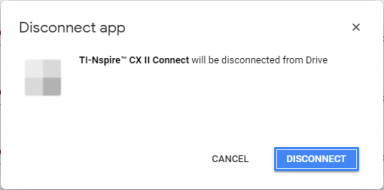
The TI-Nspire™ CX II Connect app will be removed from the list.
| 5. | Click DONE. |