| 1. | Open a compatible browser. |
| 2. | Enter nspireconnect.ti.com into the address bar. |
If prompted, click Agree and Proceed to accept cookies, and then click ACCEPT button to agree with the TI terms and conditions.
A compatibility check will be performed while the app loads. If any issues are found, a page will display with information on what needs to be addressed.
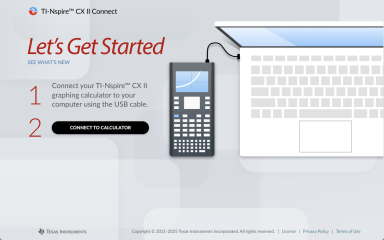
| 3. | After the |
Note: If your computer only has a USB-C port, you will need a USB-A to USB-C adapter to connect your calculator.
| 4. | Click CONNECT TO CALCULATOR. |
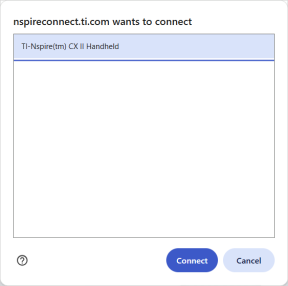
| 5. | On the popup window, click the name of your calculator and then click Connect. |
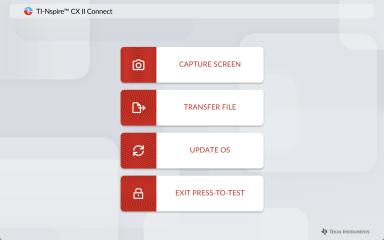
The home page will open displaying the four available options:
Navigating on the app
There are two ways to navigate on the TI-Nspire™ CX II Connect app after connecting your calculator:
| • | TI-Nspire™ CX II Connect logo on the top left of each page which links to the home page |
| • | Links to each function on the top right of each page except the home and |
Note: If your calculator is disconnected and then reconnected (or you connect another calculator), you will be redirected to the