To transfer files to or from the computer
| 1. | Navigate to the FILE TRANSFER page. |
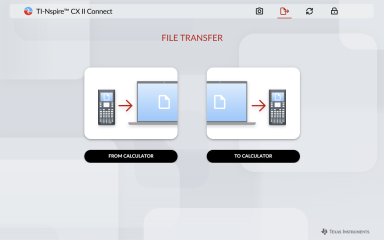
| 2. | Click either FROM CALCULATOR or TO CALCULATOR and follow the corresponding instructions below. |
Note: Only .tns files can be transferred. Other file types will not be shown. Also, files on the calculator must be in the My Documents folder, not a sub folder.
 Transferring files from the calculator to the computer
Choose the file(s) from the My Documents folder on the calculator that you want to send to the computer.
Note: Check or uncheck the Select All box to highlight or clear the selection of all files.
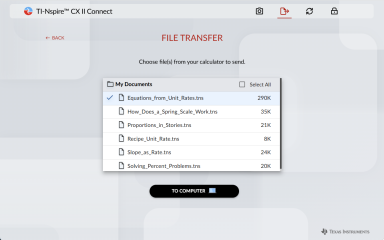
To transfer files to the computer
| 1. | Click TO COMPUTER. |
| 2. | Click on the folder you want to save the files to and click Select Folder. |
| 3. | When prompted to let the site view files, click View files. |
| 4. | When prompted to save changes to the destination folder, click Save changes. |
Note: If you transfer files that already exist on the computer, a copy of the file will be created with a number appended to the file name.
| 5. | When the Files Sent list appears, you can click SEND MORE FILES or the BACK link to select more files to transfer. |
Transferring files from the computer to the calculator
| 6. | Click FROM COMPUTER. |
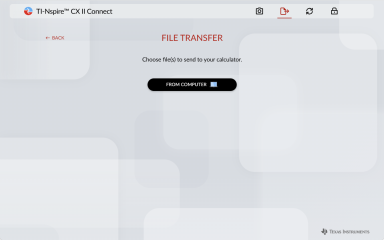
| 7. | Locate and select the file(s) to transfer. |
Note: If you transfer files that already exist on the calculator, a copy of the file will be created with a number appended to the file name.
| 8. | When the Files Sent list appears, you can click SEND MORE FILES or the BACK link to select more files to transfer. |
Note: If you transfer files that already exist on the calculator, a copy of the file will be created with a number appended to the file name.
| 9. | On the calculator a prompt will display with the following options: |
Open - Opens the file that was transferred.
Go To - Opens the My Documents folder and highlights the file that was transferred.
OK - Clears the prompt.
Note: If you transfer multiple files the prompt will only apply to the last file that was transferred.
File Transfer Troubleshooting
| • | Sending .tns files to and from nested folders on a calculator is not supported. The .tns file must be in the calculator My Documents folder in order to access the file. |
| • | If a "Location not available." message appears when transferring .tns file to a computer or network location, this is because sending files to a location that contains system files is not supported (e.g. C:\, C:\Desktop, etc.). To avoid this, create a new folder or choose a different folder to transfer your files. |