v
Pressing v displays the Data Editor where you can enter data in up to 3 lists (L1, L2, L3). Each list can contain up to 50 items.
Note: This feature is available in DEC mode only.
When editing a list, press v to access the following menus:
|
CLR |
FORMULA |
OPS |
|
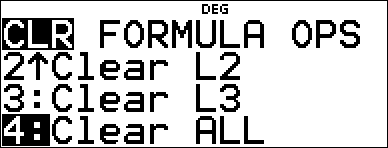
1:Clear L1 2:Clear L2 3:Clear L3 4:Clear ALL |
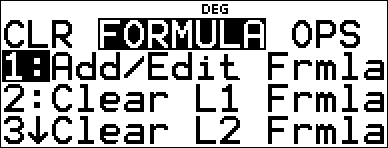
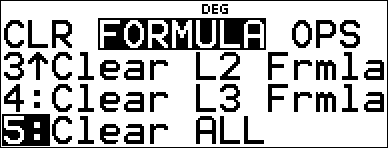
1:Add/Edit Frmla 2:Clear L1 Frmla 3:Clear L2 Frmla 4:Clear L3 Frmla 5:Clear ALL |
1:Sort Sm-Lg... 2:Sort Lg-Sm... 3:Sequence... 4:Sum List... |
Entering and Editing Data
| • | Use ! " # $ to highlight a cell in the data editor and then enter a value. |
| • | Mode settings such as number format, Float/Fix decimal and angle modes affect the display of a cell value. |
| • | Fractions, radicals and p values will display. |
| • | Press: |
| - | L in a cell edit to store the value of the cell to a variable. |
| - | r to toggle the number format when a cell is highlighted. |
| - | J to delete a cell. |
| - | < - to clear the edit line of a cell. |
| - | % s to return to the Home Screen. |
| - | % # to go to the top of a list. |
| - | % $ to go to the bottom of a list. |
| • | Use the CLR menu to clear the data from a list. |
List Formulas (FORMULA menu)
| • | In the data editor, press v " to display the FORMULA menu. Select the appropriate menu item to add or edit a list formula in the highlighted column, or clear formulas from a particular list. |
| • | When a data cell is highlighted, pressing L is a shortcut to open the formula edit state. |
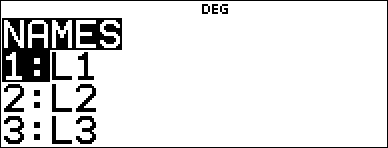
| • | In the formula edit state, pressing v displays a menu to paste L1, L2 or L3 in the formula. |
| • | Formulas cannot contain a circular reference such as L1=L1. |
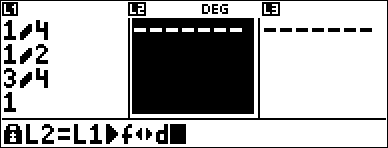
| • | When a list contains a formula, the edit line will display the reversed cell name. Cells will update if referenced lists are updated. |
| • | To clear a formula list, clear the formula first, and then clear the list. |
| • | If L is used in a list formula, the last element of the computed list is stored to the variable. Lists cannot be stored. |
| • | List formulas accept all calculator functions and real numbers. |
Options (OPS menu)
In the data editor, press v ! to display the OPS menu. Select the appropriate menu item to:
| • | Sort values from smallest to largest or largest to smallest. |
| • | Create a Sequence of values to fill a list. |
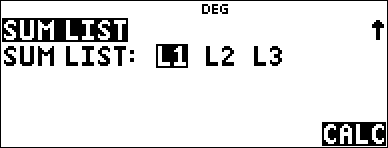
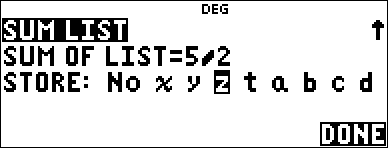
| • | Sum the elements in a list and store to a variable for further investigation. |
Example
|
L1 |
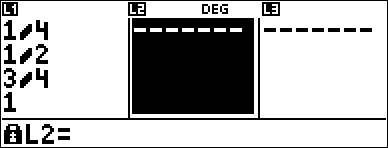
v v 4 v 1 P 4 $ 2 P 4 $ 3 P 4 $ 4 P 4 < |
|
|
Formula |
" v " |
|
|
|
< |
|
|
|
v |
|
|
|
< % j |
|
|
|
< |
|
|
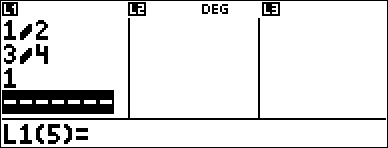
Fill a list with a sequence |
" v ! 3 " " < |
|
|
|
g z < 1 < 4 < 1 < |
|
|
|
< |
|
|
Store the Sum of L1 to the variable z |
v ! 4 < |
|
|
|
< " " " < < |
|
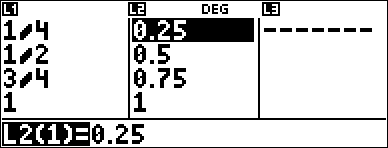
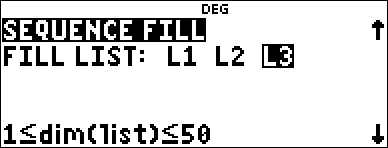
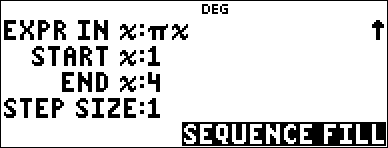
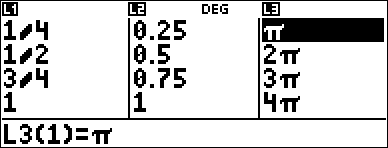
Problem
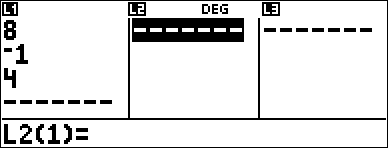
On a November day, a weather report on the Internet listed the following temperatures.
Paris, France 8¡C
Moscow, Russia M1¡C
Montreal, Canada 4¡C
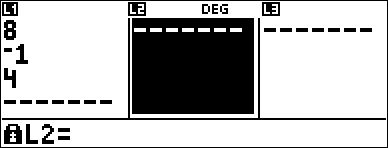
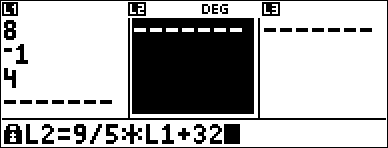
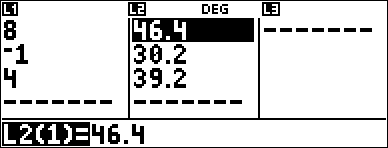
Convert these temperatures from degrees Celsius to degrees Fahrenheit. (See also the section on Conversions.)
Reminder: F =  C + 32
|
v v 4 v " 5 |
|
|
8 $ M 1 $ 4 $ " |
|
|
v " 1 |
|
|
9 W 5 V v 1 T 32 |
|
|
< |
|
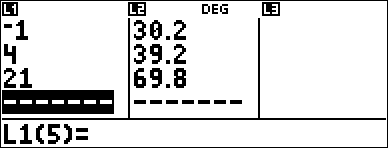
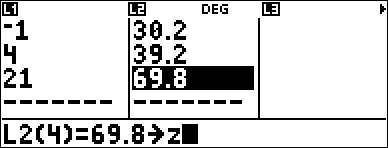
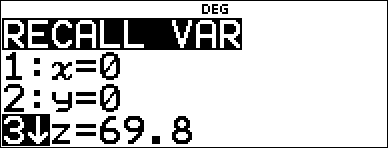
If Sydney, Australia is 21¡C, find the temperature in degrees Fahrenheit and store the temperature in the variable z.
|
! $ $ $ 21 < |
|
|
# " < % " L z z z |
|
|
< % h $ $ |
|