To free or recover storage, delete documents and/or folders from the handheld. To keep the documents and folders for later use, transfer them to another handheld or to a computer using the TI-Nspire™ software.
Deleting Files from the Handheld
| 1. | Press c 2 to open the My Documents file browser. |
| 2. | Press £ or ¤ to select the folder or document you want to delete. |
| 3. | Press .. |
—or—
Press / b 6.
A dialog box opens, asking you to confirm the deletion.
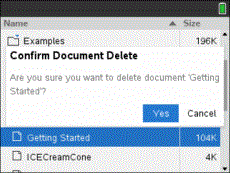
| 4. | Press · to confirm or d to cancel. |
The folder/document is permanently removed from the handheld.
Backing up Files to Another Handheld
| 1. | Connect the two handhelds using the USB-to-USB connectivity cable. |
| 2. | Press c 2 to open My Documents on the sending handheld. |
| 3. | Press the 5 and 6 keys to highlight the document you want to send. |
| 4. | Press b, and then select Send. |
—or—
Press / b 2.
| 5. | When the file transfer is complete, a message is displayed on the receiving unit. |
Transferring Files to a Computer
Use the TI-Nspire™ software to transfer files and folders from a handheld to a computer.
| 1. | Connect your handheld to the computer using a standard A to mini-B USB cable. |
| 2. | In the TI-Nspire™ software, open the Documents Workspace. |
| 3. | In the Documents Toolbox, click  to open the Content Explorer. to open the Content Explorer. |
|
|
Computer pane
Connected Handhelds pane |
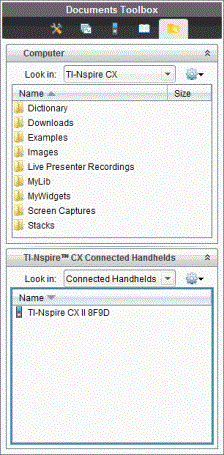
| 4. | In the Computer pane, navigate to the folder in which you want to save the files. |
| 5. | In the Connected Handhelds pane, double-click the handheld name to view the folders and files on the handheld. |
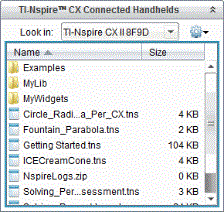
| 6. | Select the file or folder you want to save to the computer. |
| • | Click the file to select one file or folder at a time. |
| • | To select all files on the handheld, select the first file in the list, hold down the Shift key, and then click the last file or folder in the list. |
| • | To select random files, click the first file, and then hold the Ctrl key while selecting additional files. |
Note: If you select multiple files, it is saved as lesson bundle (.tilb file).
| 7. | Drag the files to the folder in the Computer pane. |
—or—
Select File > Save as.
The files are copied to the folder on the computer.
| 8. | Verify that the files you need are available on your computer, and then delete the files from the handheld. |
Note: Those using the TI-Nspire™ CX Premium Teacher Software or the TI-Nspire™ CX Navigator™ Teacher Software can also use options in the Content Workspace to copy files from a handheld to a computer.