Managing Documents
Document management with the TI-Nspire™ CX II online calculator is slightly different than on the graphing calculator. Since your work is based in a browser session, there is no active file in use.
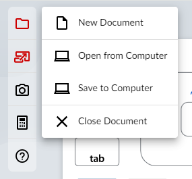
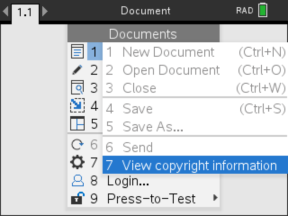
Therefore, the New, Open, Save, and Close functions are performed with the Function Bar instead of the Documents > File menu options or the X button. Those options have been disabled in the File menu and the X has been removed from the top right corner as shown below.
|
|
|
CAUTION: Any changes you make to a document are not auto-saved. They only exist in the current browser session. You must manually save them (see the Save to Computer section below) in order to capture any changes since the last save.
Also note that:
| • | Each document is divided into at least one, and up to 30, problems. |
| • | Each problem contains at least one, and up to 50, pages. |
| • | Each page can be divided into as many as four work areas. |
| • | Each work area can contain any of the TI-Nspire™ applications (Calculator, Graph, Geometry, Lists & Spreadsheet, Data & Statistics, Notes, Program Editor, and Python). |
New Document
Note: These steps are for the workspace page. You can also create a new document on the Document Prompt page.
To create a document
| 1. | Click the Document  icon on the Function Bar. icon on the Function Bar. |
| 2. | Click New Document. |
The workspace will refresh and display an empty document.
Open from Computer
Note: These steps are for the workspace page. You can also open an existing document on the Document Prompt page.
To open a document
| 1. | Click the Document icon on the Function Bar. |
| 2. | Click Open from Computer. |
| 3. | Select the file you want to open and click Open. |
The workspace will refresh and display the document you chose.
Save to Computer
To save a document
| 1. | Click the Document icon on the function bar. |
| 2. | Click Save to Computer. |
| 3. | Select the location where you want to save the document. |
| 4. | Enter a name for the document and click Save. |
If you use an existing document name, you will be prompted to overwrite the document.
If there are unsaved changes to your document, you will be prompted to save that document if you try to:
| • | create a new document, |
| • | open an existing document, |
| • | or close the current document. |
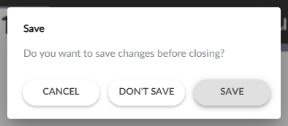
If you try to close or reload the browser tab or window, a browser dialog box will display indicating that there are unsaved changes. You can then choose whether to continue without saving, or cancel and save the latest changes.
Close Document
To close a document
| 1. | Click the Document icon on the function bar. |
| 2. | Click Close Document. |
You will be returned to the Document Prompt page to open a document from your computer or create a new document.