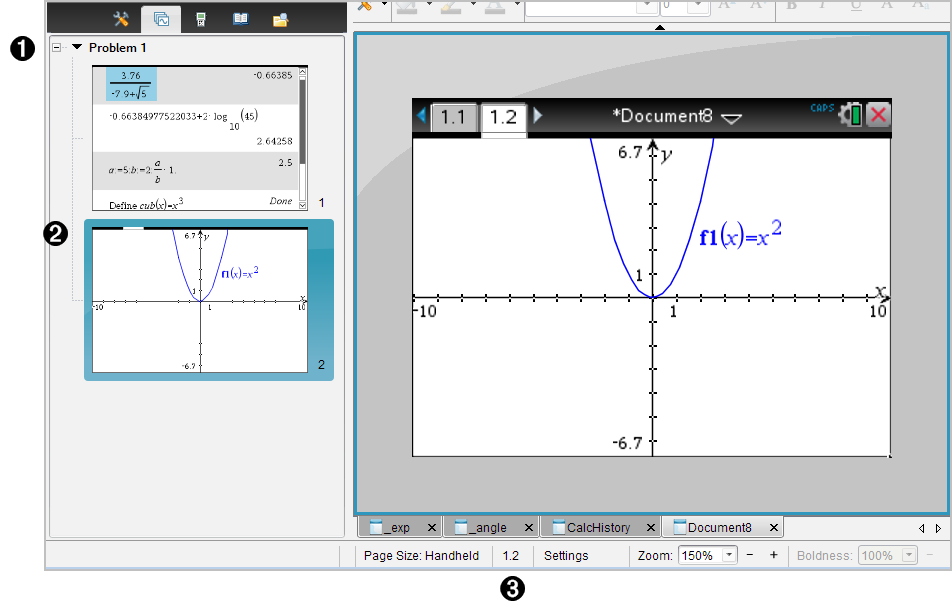
To quickly move and rearrange pages in a document that contains multiple pages, use the Page Sorter to list thumbnail views of all pages in the document.
|
À |
Page Sorter. Show by clicking the Page Sorter button ( |
|
Á |
Active page. The page currently highlighted in the Page Sorter and active in the work area. |
|
 |
Problem/Page counter. Displays the problem number followed by the page number. |
The Page Sorter always indicates the active page in the work area.
| • | If you are working on a page in the work area, this page is indicated in the Page Sorter by a color border. |
| • | If you are actively using the Page Sorter, the active page displayed in the work area has a color border in the Page Sorter pane. |
| • | Clicking on any page in the Page Sorter makes it the active page, and it is displayed in the work area. |
Use the Page Sorter to change the order of pages within a problem.
| 1. | Click to select the thumbnail view of the page in the Page Sorter. |
| 2. | Drag the page to the desired position, and release to drop it in the new location. |
To group up to four pages into a single page:
| 1. | Click the first page in the series. |
| 2. | Click Edit > Page Layout > Group. |
The next page is grouped with the first page. The page layout automatically adjusts to display all the pages in the group.
| 1. | Click the grouped page. |
| 2. | Click Edit > Page Layout > Ungroup. |
The material becomes individual pages and applications.
| 1. | Click the application you want to delete. |
| 2. | Click Edit > Page Layout > Delete Application. |
The application is deleted.
To undo the delete, press Ctrl + Z (Mac®: “+ Z).
| 1. | Select the page you want to delete. |
| 2. | Click Edit > Delete. |
—or—
Click  .
.
—or—
Right-click and click Delete.
 ) on the Documents Toolbox. Displays thumbnail sketches of all pages in all problems in the current document. Use the scroll bar to view pages off the screen.