
Use the text formatting tools to format text in TI‑Nspire™ applications that allow text input, and to format text in PublishView™ documents. By default, the text formatting toolbar opens in the area above an active document. Options on the toolbar are enabled or disabled depending on the active application.
For example, the following image shows options available in an active Graphs & Geometry document.
|
Option |
Function |
|||||||||
|
|
Click ¤ to open the menu for the active application. This tool enables you to open an application menu regardless of the option selected in the Documents Toolbox. |
|||||||||
|
|
Click ¤ to select a background color for highlighting text or choose a fill color for a selected cell. |
|||||||||
|
|
Click ¤ to select the line color for an object. For example, in Graphs & Geometry, you can choose a color for a selected shape. |
|||||||||
|
|
Click ¤ to select a color for selected text. |
|||||||||
|
|
Use these tools to choose a font and set the size of the font.
|
|||||||||
|
|
Click the appropriate tool to apply bolding, italics, or underlining; apply superscript or subscript; or strike out text. |
|||||||||
|
|
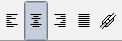
In a PublishView™ document, use these tools to position text within the header or footer, or in text box. Clicking For more information, see Working with PublishView™ Documents. |
| ▶ | When the formatting toolbar is visible, click £ (located under the toolbar) to hide the toolbar. |
| ▶ | Click ¤ to show the toolbar when the formatting toolbar is hidden. |



 to increase the font size or click
  to decrease the font size incrementally.
 opens the Hyperlink dialog box.