You can use your computer keyboard to press a key instead of pressing that key on the
Using the Computer Keyboard
To press an emulator key using your computer keyboard, use the table below to find the computer keyboard key associated with the emulator key.
| • | TI-30X Pro MathPrint™ or TI-30X Plus MathPrint™ keyboard shortcuts |
| • | TI-30X Prio MathPrint™ keyboard shortcuts |
| • | TI-30XS-30XB MultiView™ keyboard shortcuts |
| • | TI-34 MultiView™ keyboard shortcuts |
TI-30X Pro MathPrint™ or TI-30X Plus MathPrint™
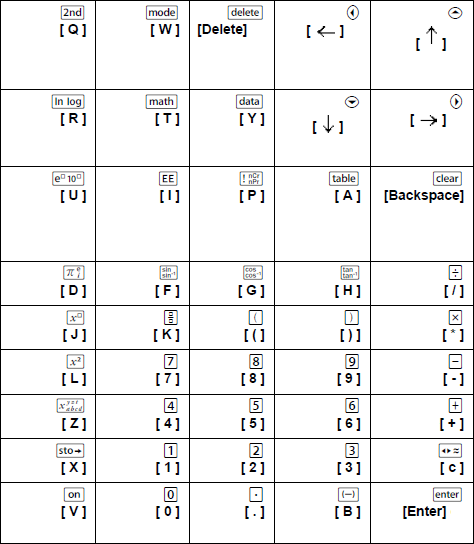
Example: To display the mode screen in the emulator, press [W] on the computer keyboard as shown in the table below.

TI-30X Pro MathPrint™ keyboard shortcuts:
TI-30X Plus MathPrint™ keyboard shortcuts:
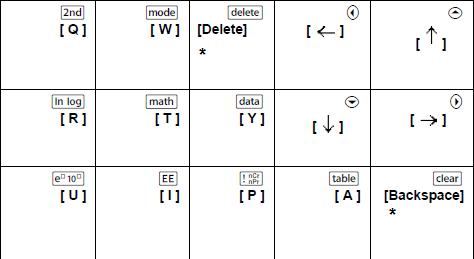
*Note:
On the MAC computer keyboard,
| - | Press [Delete] for J. |
| - | Press [Backspace] for -. |
TI-30X Prio MathPrint™
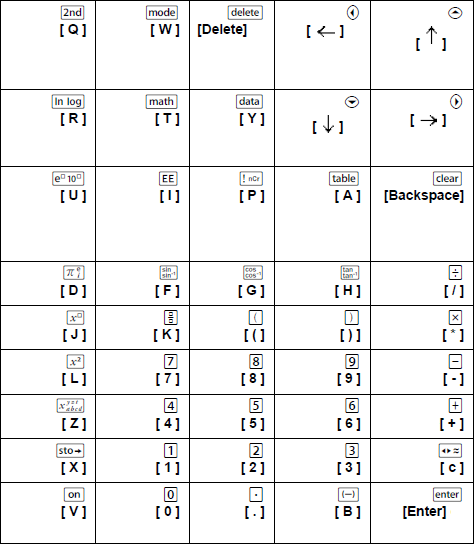
Example: To display the mode screen in the emulator, press [W] on the computer keyboard as shown in the table below.
TI-30X Prio MathPrint™ keyboard shortcuts:
*Note:
On the MAC computer keyboard,
| - | Press [Delete] for J. |
| - | Press [Backspace] for -. |
TI-30XS/30XB MultiView™
Example: To display the mode screen in the emulator, press [W] on the computer keyboard as shown in the table below.
TI-30XS MultiView™ keyboard shortcuts:

*Note:
On the MAC computer keyboard,
| - | Press [Delete] for J. |
| - | Press [Backspace] for -. |
TI-34 MultiView™
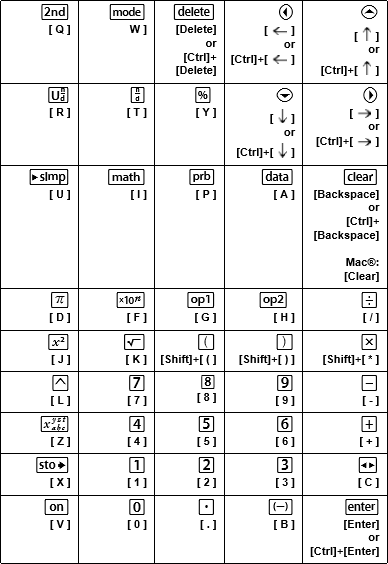
Example: To display the mode screen in the emulator, press [W] on the computer keyboard as shown in the table below.
TI-34 MultiView™ keyboard shortcuts:
*Note:
On the MAC computer keyboard,
| - | Press [Delete] for J. |
| - | Press [Backspace] for -. |