You can use the TI-Nspire™ desktop software to copy table data to and from software outside the TI-Nspire™ applications, such as TI DataEditor (in the TI Connect™ software) and Excel® spreadsheet software.
For example, you can copy:
| • | The values of individual cells, a range of cells, or an entire list from TI DataEditor. |
| • | The values (not the underlying formulas) of individual cells, a range of cells, or an entire column from an Excel® spreadsheet. |
| • | A number from TI DataEditor. |
| • | The value of a matrix from TI DataEditor. |
 Example - Copying Data from TI DataEditor
| 1. | Open the TI Connect™ software. |
| 2. | Display the TI DataEditor. |
| 3. | If necessary, open the file containing the number, list, or matrix that you want to copy. |
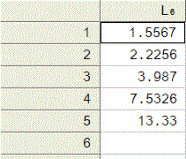
| 4. | Drag to select the values that you want to copy. To copy an entire list, click the top cell in the list. |
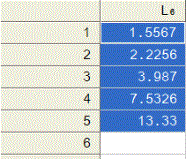
| 5. | Click Edit > Copy. |
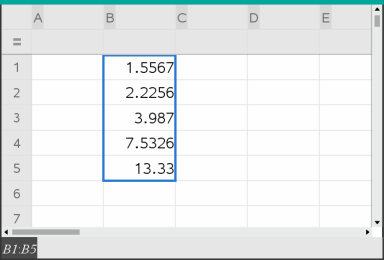
| 6. | In Lists & Spreadsheet, click the cell where you want the data to be pasted. |
If you have copied a range of cells, they will be pasted so that the upper-left corner of the range is positioned at the selected cell. Any data in those cells will be overwritten.
| 7. | Click Edit > Paste. |
Copying Cells from an Excel® Spreadsheet
You can copy up to 26 columns and 2500 rows from an Excel® spreadsheet to a Lists & Spreadsheet application.
| 1. | Drag to select the values that you want to copy from the Excel® spreadsheet. To copy an entire column, click the column identifier at the top of the column. |
Note: If you select non-contiguous columns in the Excel® spreadsheet, they will be pasted as contiguous columns in Lists & Spreadsheet.
| 2. | Use the standard key shortcut for copying a selection. |
Windows®: Press Ctrl+C.
Mac®: Press “+C.
| 3. | In Lists & Spreadsheet, click the cells where you want the data to be pasted. |
If you are copying a range of cells, they will be pasted so that the upper-left corner of the range is positioned at the selected cell. Any data in those cells in will be overwritten.
| 4. | Paste the data. |
Windows®: Press Ctrl+V.
Mac®: Press “+V.
Handheld: Press / V.
Note: Categorical data must be enclosed in quotes (“ “) after the data is pasted.