You can define functions or programs in the Program Editor, or by using the Define command in Calculator to define variables, functions, or programs. Library objects must reside in the first problem of a library document.
 Defining a Function or Program Using Program Editor
| 1. | Tap Tools  and go to Functions & Programs. and go to Functions & Programs. |
| 2. | Tap Program Editor > New. |
| 3. | Type the name of the library object. |
| • | Library object names must be a valid variable name, and they must not contain a period or begin with an underscore. |
| • | A library object name must be between 1 and 15 characters long. |
| 4. | Select the type: function or program. |
| 5. | Set the library access. |
| • | Tap  LibPriv to make the function or program accessible from any document but not visible in the Catalog. LibPriv to make the function or program accessible from any document but not visible in the Catalog. |
| • | Tap LibPub (Show in Catalog) to make the function or program accessible from any document and visible in the Catalog. |
| 6. | Tap OK. |
| 7. | Type the information needed to complete the function or program in the template. |
| 8. | Store the library object. |
| a) | In Program Editor, tap Tools > Check Syntax & Store. |
| b) | Tap Check Syntax & Store. |
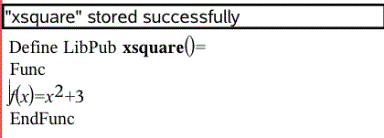
If no errors are present, the new library object is successfully stored.
| 9. | Refresh the libraries to include the new library object in the Libraries menu. |
Defining a Library Object in the Calculator Application
| 1. | From an open Calculator document, tap Tools and go to Actions. |
| 2. | Tap Library. |
| 3. | Select Define LibPriv or Define LibPub. |
| 4. | Type the information needed to complete the function or program in the template. |
| 5. | Refresh the libraries to include the new library object in the Libraries menu. |