Preparing the iPad® for Test Mode
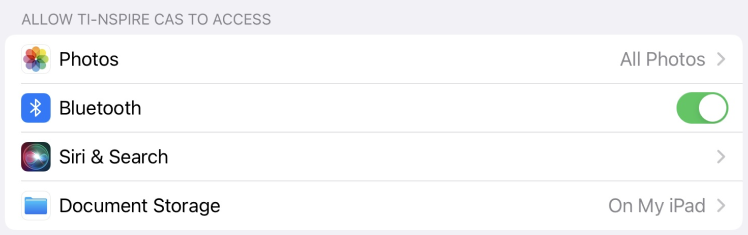
Before entering Test Mode, make sure that TI-Nspire™ has access to Photos and Bluetooth.
| • | Photos = All Photos or Selected Photos |
| • | Bluetooth = On |
You must then change the following settings on the iPad®:
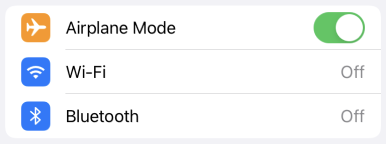
| • | Airplane Mode = On |
| • | Wi-Fi = Off |
| • | Bluetooth = Off |
To enable Airplane Mode while in the App:
| 1. | Swipe down from the top-right corner of the iPad® screen to open the Control Center. |
| 2. | Tap the Airplane Mode icon. |

The Airplane Mode, AirDrop, Wi-Fi, and Bluetooth icons will change to indicate that they have been disabled.
Airplane Mode can also be enabled from the iPad settings.
To enable Airplane Mode in the iPad® Settings:
| 1. | On the iPad® Home screen, tap Settings  . . |
| 2. | Go to Airplane Mode and tap the toggle switch  . . |
The switch will turn green and the Wi-Fi and Bluetooth options will change to 'Off'.
In order to save the Test Mode Summary at the end of the test session, the App will need to access your photos.
To validate or change the access to your photos:
| 1. | On the iPad® Home screen, tap Settings . |
| 2. | Go to TI-Nspire > Photos or TI-Nspire CAS > Photos. |
| 3. | Tap All Photos or Selected Photos if it is not already selected. |
More Information
If you tap Test Mode  before turning Airplane Mode on or allowing access to your photos, you will be prompted to make the necessary changes before entering Test Mode.