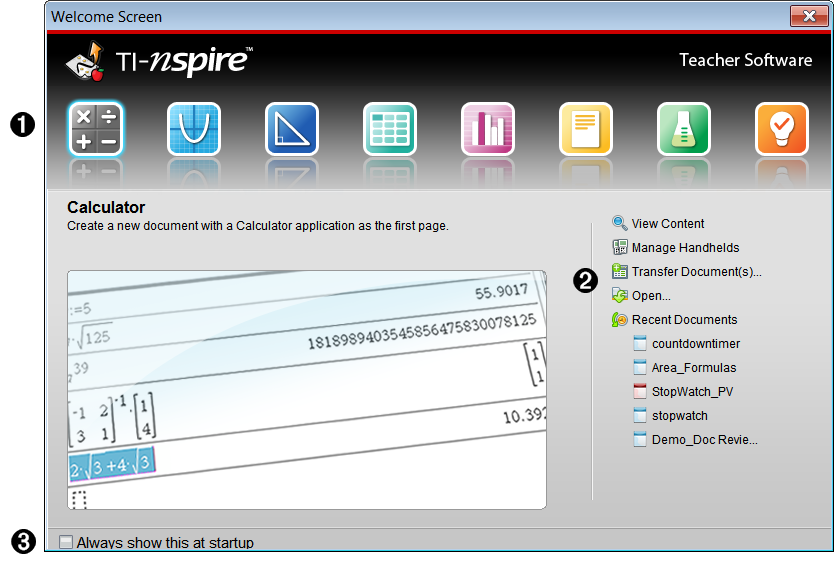
By default, the Welcome Screen opens the first time you start the software after installation is complete. To begin working with documents, click an icon or link or close this screen manually. Any normal action that takes place automatically, such as upgrade prompts or the ability to begin using connected handhelds, appears after you close the Welcome Screen.
Note: Depending on how your software was installed, you might see a Product Improvement screen the first time you start the software.
|
À |
TI‑Nspire™ applications. Click one of these icons to create a new document with the selected application active. The applications are Calculator, Graphs, Geometry, Lists & Spreadsheet, Data & Statistics, Notes, Question and the Vernier DataQuest™ application. When you click an icon, the Welcome Screen closes and the selected application opens in the Documents Workspace. |
||||||||||||||||||
|
Á |
Quick Start links. Click one of these options to:
Use the following links to:
|
||||||||||||||||||
|
 |
Always show this at startup. Clear this tickbox to skip this screen when you open your software. |
To access the default workspace and begin working with documents, click  to close the Welcome Screen. To open the Welcome screen again, click Help > Welcome Screen.
| • | In the TI‑Nspire™ CX Teacher Software, the Content Workspace is displayed when you open the software for the first time. |
| • | In the TI‑Nspire™ CX Student Software, the Documents Workspace is the default workspace. |
Note: The next time you open the software, the last workspace used is displayed.