|
1.
|
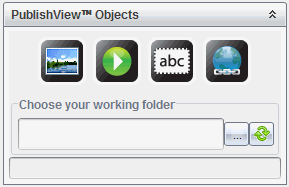
Ensure the PublishView™ Objects pane is open. |
|
2.
|
Use your mouse to click  and drag it to the problem. and drag it to the problem. |
|
3.
|
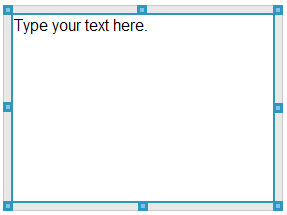
Release the mouse button to drop the text box into the problem. |
|
4.
|
Using the mouse, grab the handles to resize the text box or position in the problem as needed. |
|
5.
|
Click outside the text box to save the size and position. |
|
6.
|
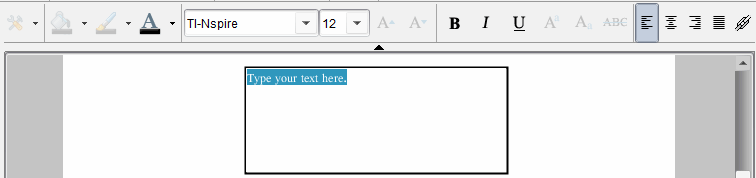
Click "Type your text here." |
The formatting toolbar becomes active. The text box is in an interactive state for adding or editing text.
—or—
Copy and paste text from another file.
|
8.
|
Apply formatting as needed. |
|
9.
|
Click outside the text box to save the text. |
 Inserting Text into a Text Box