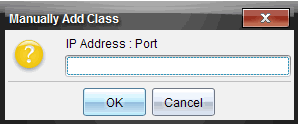
Providing Students with a Host Name or IP Address
Complete the following steps to locate host name or IP address.
| 1. | In the Class Workspace, click File > Settings > Teacher Preferences. |
The Teacher Preferences dialog box opens.
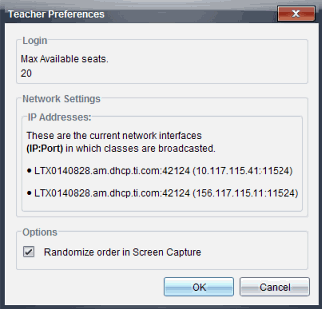
The host name and IP address are on the same line. You may be broadcasting several addresses. If your network administrator has not specified a preference, use any address.
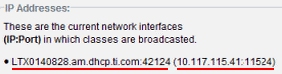
| 2. | Provide students either the host name or the IP address, but not both. |
|
|
|
|
Host Name |
IP Address |
| 3. | Click OK. |
The Teacher Preferences dialog box closes.
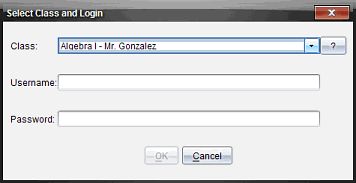
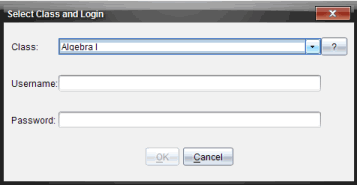
 , which is located at the end of the Class field.