| 1. | Insert a new problem and select the 3D Graphing view. |
| 2. | From the Actions menu, select Insert Slider, click to position it, and type time as the variable name. |
| 3. | Display the slider’s context menu, click Settings, and enter the following values. |
Value: 3.8
Minimum: 3.2
Maximum: 4.4
Step Size: 0.1
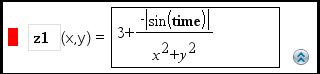
| 4. | In the entry line, define the function shown here: |
| 5. | Drag the slider thumb to see the effect of varying time. |
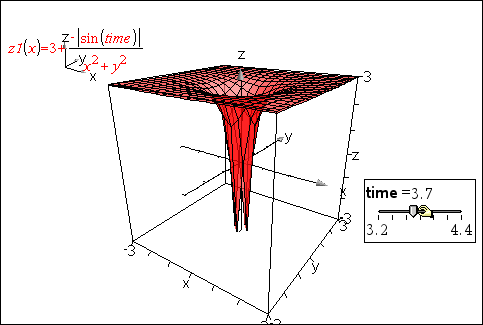
| 6. | Add visual interest. For example: |
| - | Change the background color of the work area. |
| - | Hide the box, axes, or legend. |
| - | Automatically rotate the graph. |
| - | Change the graph's fill color and hide its lines. |
| - | Change the graph’s transparency and shading. |
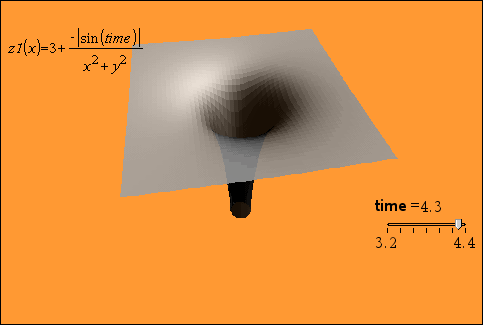
| 7. | To animate the graph, display the slider’s context menu, and click Animate. (To stop, click Stop Animate from the context menu.) |
You can combine manual or auto rotation with the slider animation. Experiment with the x and y resolution to balance curve definition against animation smoothness.