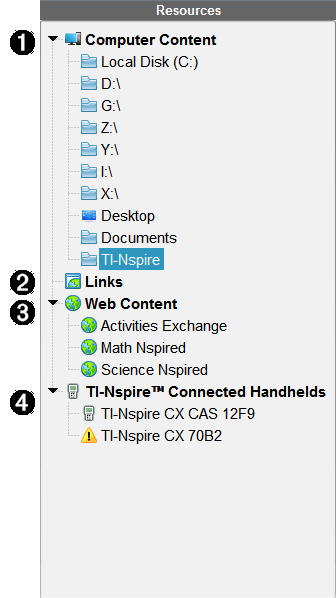
Use the Resources pane to locate documents on a computer, access web content, and communicate with connected handhelds if using TI‑Nspire™ software that supports connected handhelds.
|
À |
Computer Content. Enables navigation to all files on a computer, network drives, and external drives. Computer Content expands and collapses to provide access to the following default shortcuts:
When you select an item in Computer Content, the file structure appears in the Content pane. When you select a folder or supported file, the detail is displayed in the Preview pane. |
|||||||||||||||
|
Á |
Links. By default, links to Texas Instruments sites are listed. When you click Links, it shows a list of links in the Content pane. Then when you click a link there, it launches in your web browser. You can add your own links to this section. Links from the latest version of the TI‑Nspire™ software are added when you upgrade. Users located in the United States can search U.S. standards or textbooks by selecting the search option from Links. |
|||||||||||||||
|
 |
Web Content. Lists links to Texas Instruments sites that contain TI‑Nspire™-supported activities. Web Content is available if you are connected to the Internet. You can save material you find on these sites to your computer and share items through the Computer Content pane or Connected Handhelds if using software that supports handhelds. You cannot save links to websites in the Web Content section. Note: The web content that is available varies depending on region. If there is no online content, this section is not visible in the Resources pane. When you select an item in Web Content, the list of activities is displayed in the Content pane, and a preview of the selected activity is displayed in the Preview pane. |
|||||||||||||||
|
à |
Connected Handhelds. Lists handhelds connected to your computer. Click the Connected Handhelds label to view information about each handheld in the Content pane. To see folders and files on a specific handheld, click the handheld name. A warning sign next to a handheld name indicates that the OS on the handheld does not match the software version. The handheld OS release version must match the TI‑Nspire™ software release version to work in a classroom environment. Move your mouse over the warning sign to open a tool tip for more information. Note: Connected Handhelds are not shown if there are no handhelds connected or if you are using TI‑Nspire™ Navigator™ NC Teacher Software. |