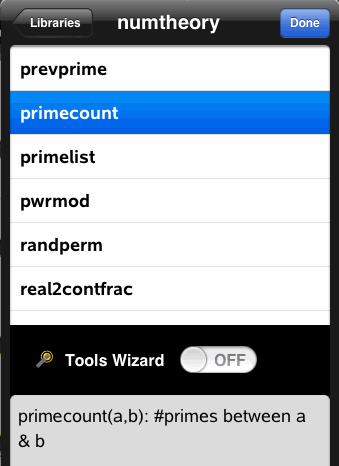
Accessing Library Objects
To use a library object in any TI‑Nspire™ document, type the object's long name. The long name consists of the name of the object library document followed by a backslash "\" followed by the name of the object. For example, if the library document name is "lib1" and the object name is "func1," type lib1\func1.
| 1. | Open the TI‑Nspire™ application where you want to use the variable, function, or program. |
Note: All applications can evaluate functions, but only the Calculator and Notes applications can run programs.
| 2. | Tap Utilities  and go to Libraries. and go to Libraries. |
| 3. | Tap the name of the object you want to use. |
Note: If you do not see the object, refresh the libraries.
| 4. | If arguments are required, type them inside the parentheses. |
| 5. | Tap return to insert the object into the document. |
| 1. | Open the TI‑Nspire™ application where you want to use the variable, function, or program. |
Note: All applications can evaluate functions, but only the Calculator and Notes applications can run programs.
| 2. | Type the name of the object, such as lib1\func1 (). |
In the case of a function or program, always follow the name with parentheses.
| 3. | If arguments are required, type them inside the parentheses. |
| 4. | Tap return to insert the object into the document. |
If you cannot remember the exact name or the order of arguments required for a private library object, you can:
| ▶ | Open the library document that contains the object to view the arguments and other information. |
—OR—
| ▶ | Type getVarInfo [library name string] in any open document to view a list defined variables in an object. |
—OR—
| ▶ | Access the arguments and help through the Utilities menu. |
| a) | Tap Utilities > Libraries. |
| b) | Tap the name of the library you want to open. |
| c) | Tap the name of the function you want to view. |