 to open a new document with a notes page or add a notes page to an open document.
To add a blank Notes page to an existing or new document:
| ¢ | In a new document, click Add Notes from the menu. |
| ¢ | In an existing document, click Insert > Notes. |
| ¢ | From a handheld, press to open a new document with a notes page or add a notes page to an open document. |
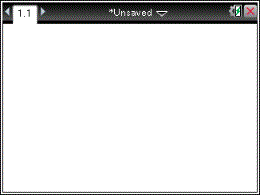
The Notes work area is displayed in Default mode.
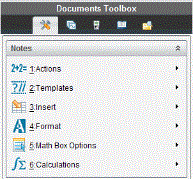
Options on the Notes menu enable you to:
| • | Perform actions such as evaluate and approximate expressions |
| • | Select a template: |
| - | Q&A for questions and answers |
| - | Proof for an outline structure containing statements and reasons |
| - | Default for freeform text entry |
| • | Insert math expressions, shapes, comments, or images |
| • | Format the text in a note |
| • | Customize a math expression |
| • | Perform calculations |
On your desktop, the Notes menu icons are displayed in the Documents Toolbox panel. With the Notes application active, click  to open the Notes menu.
On a handheld, press b to open the Notes menu.
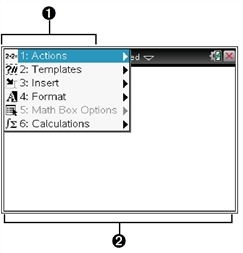
|
À |
Notes tool menu – This menu is available anytime you are in the Notes work area. |
|
Á |
Notes work area -- The area where you type and format text. |