Users with limited Internet access can download Document Player and install the program on their computer for use offline. Once the Document Player executable files are downloaded, they can be shared with other users through a local area network or using external drives such as a DVD or Flash drive.
Complete the following steps to download the Document Player executable files. Internet access is required to download the files.
| 1. | Go to education.ti.com/nspireplayer. |
| 2. | Click Download. |
| • | The nspire-player.zip file is downloaded to the default folder as shown in the browser settings. |
| • | To save the file in a different location, navigate to the folder where you want to save the file. |
After you download the file, copy it to a DVD or to a shared folder on your network where users without an Internet connection can access the file.
After you copy the nspire-player.zip file to a folder on your local drive, complete the following steps to install Document Player.
| 1. | Go to the folder where you saved the nspire-player.zip file. |
| 2. | Right-click the file name, and then select Extract All to extract the files. |
By default, the files are extracted into the nspire-player folder.
| 3. | Within the nspire-player folder, double-click the setup.bat file. If using a Mac®, double-click the setup file. |
| • | Windows®: The cmd.exe window opens and the files are copied to the nspire-player folder. |
| • | Mac®: The console window opens indicating the installation is in progress. |
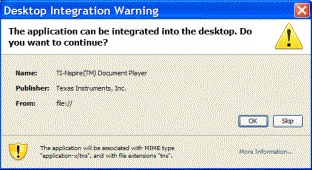
When all files are copied, the Java Web Start window opens, and then the Desktop Integration Warning window opens.
| 4. | Click OK to add the Document Player icon to your desktop. Click Skip if you don’t want to add the icon to your desktop. |
The Java Web Start dialog box opens briefly and the cmd.exe window closes. When the installation is complete, the TI‑Nspire™ Document Player License Agreement window opens.
| 5. | Click I agree to accept the license agreement. |
The TI‑Nspire™ Document Player opens.
When you install Document Player, you can choose to associate .tns and .tnsp files with the Document Player. Once files are associated with Document Player, double-clicking a TI‑Nspire™ or PublishView™ file from a file manager opens the file in Document Player by default.
If you already have a full version of any TI‑Nspire™ software product, .tns and .tnsp files are already associated with the software and the Association Warning dialog box opens when you install Document Player.
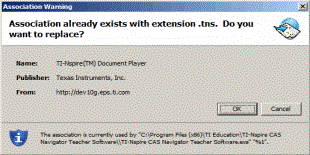
| ¢ | Click OK to associate .tns or .tnsp files with Document Player. |
| ¢ | Click Cancel to leave files associated with the TI‑Nspire™ software. |