 .
.When you open the software, the Documents Workspace opens with a blank document containing one problem. You can add applications and content to this problem to create a document.
Note: The Welcome Screen is displayed when you open the software if the "always show this at startup" option is selected. Click an application icon to add a problem with an active application to a new document.
To create a new document, complete the following steps:
| 1. | Click File > New TI‑Nspire™ Document. |
—or—
Click .
| 2. | Click New TI‑Nspire™ Document. |
The new document opens in the Documents Workspace and you are prompted to select an application. By default, new documents open in your current view: computer or handheld. To change the view, use the View menu or click the appropriate icon in the status bar.
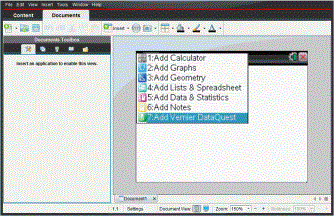
| 3. | Select an application to add a problem to the document. |
The problem is added to the document.