| 1. | Ensure the handheld is turned off. |
| 2. | On a Touchpad, press and hold down the d c keys. |
On a Clickpad: Press and hold down the d c w keys.
Do not release keys until the Press-to-Test screen is displayed.
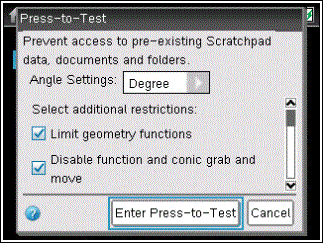
By default, all restrictions are selected. You must change the restriction settings before you enter Press-to-Test. You cannot change the settings after you enter Press-to-Test unless you exit Press-to-Test and enable it again.
| 3. | Select additional restrictions or clear restrictions as needed. |
| • | To accept the default settings, press · or click Enter Press-to-Test. |
| • | To clear all default settings, press / 9. Use the scroll bar to view restrictions and click the corresponding check box to select a restriction. |
| • | On a Clickpad: Press · or click Enter Press-to-Test. |
When you enter Press-to-Test mode:
| • | Pre-existing Scratchpad data is temporarily deleted. |
| • | Pre-existing documents and folders within the My Documents folder are temporarily deleted. |
Note: Pre-existing documents, folders, and Scratchpad data will be restored when Press-to-Test is removed.
| • | A “Press-to-Test” folder is created within the My Documents folder. |
| • | If installed, the Chinese-English dictionary is disabled on TI‑Nspire™ CX‑C handhelds. |
| 1. | To clear all default settings, press / 9. |
| 2. | To change the angle settings, press e to highlight the menu. |
| a) | Press ¤ to display the list of options. Available options are: degree, radian, and gradian. |
| b) | Press £ or ¤ to highlight the option you wish to choose. |
| c) | Press · to select the option. |
On a Clickpad: Press · to select the option.
| 3. | Press e or press ¤ to move through the list of restrictions. To quickly access the last item in the list, press £. Continue to press £ to move up through the list of restrictions. |
| 4. | When a restriction is highlighted, press x to clear the option. Clearing the option makes the option available to students. By default, all restrictions are selected (not available to students). You can select or clear the following functions: |
| • | Limit geometry functions |
| • | Disable function and conic grab and move |
| • | Disable vector functions, including eigenvectors and eigenvalues |
| • | Disable “isPrime” function |
| • | Disable differential equation graphing |
| • | Disable inequality graphing |
| • | Disable 3D graphing |
| • | Disable implicit graphing, conic templates, conic analysis, and geometric conics |
| • | Limit trigonometric functions |
| • | Disable the logbx template and summation functions |
| • | Disable Polynomial Root Finder and Simultaneous Equation Solver |
| 5. | Press e to select Enter Press-to-Test, and then press ·. |
On a Clickpad: Press e to select Enter Press-to-Test, and then press ·.
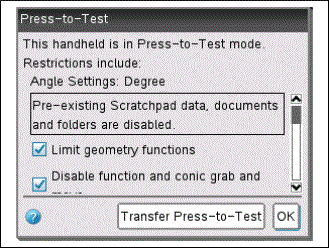
The handheld saves the settings and reboots. When the reboot has completed, the following dialog box is displayed to confirm the handheld is in Press-to-Test mode.
Note: Your handheld display may be different, depending on whether you modify the default Press-to-Test settings. You are not able to change settings after the handheld reboots.
|
Click ? to access help. |
|
Click here to transfer Press-to-Test to another handheld.
Click OK to accept the settings. |
| 6. | Press x or · to select OK. |
On a Clickpad: Press x or · to select OK.
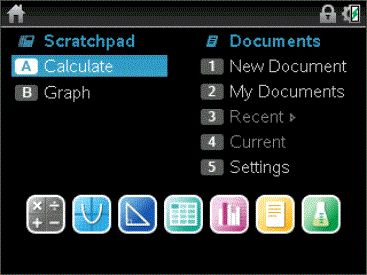
The Home screen opens.
|
|
The Lock icon indicates handheld is in Press-to-Test mode. |
| 1. | From the Press-to-Test window, click  , which is located in the lower left corner. , which is located in the lower left corner. |
From an open document, press ~, and then select Press-to-Test > Help.
On a Clickpad: Press / c, and then select Press-to-Test > Help.
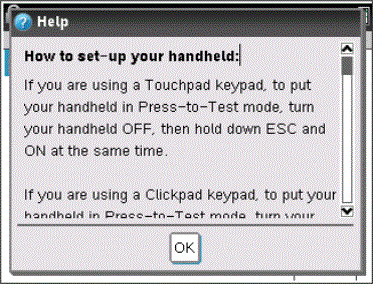
The Help window opens enabling you to view information about each restriction.
| 2. | Click OK to close the Help window. |
To exit the Press-to-Test screen without enabling Press-to-Test mode:
| 1. | Press d or press e to select OK. |
| 2. | Press ·. |
On a Clickpad: Press ·.