| 1. | In the Graphing view, tap Tools  and go to Trace > Graph Trace. and go to Trace > Graph Trace. |
The Graph Trace tool appears in the Graphs toolbar, the trace cursor appears, and the cursor coordinates are displayed in the lower right corner.
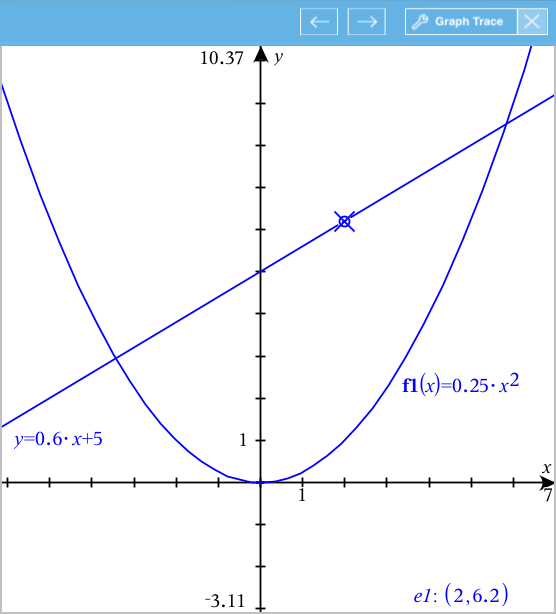
| 2. | Explore a graph or plot: |
| - | Tap a point on a graph or plot to move the trace cursor to that point. |
| - | Tap  or or  on the Graph Trace tool to step the cursor along the current graph or plot. The screen pans automatically to keep the cursor in view. on the Graph Trace tool to step the cursor along the current graph or plot. The screen pans automatically to keep the cursor in view. |
| - | Double-tap the trace cursor to enter a specific independent value. |
| - | Tap and hold the trace cursor to create a persistent point. |
| 3. | To stop tracing, tap the X on the Graph Trace tool. |