The TI-Nspire™ Page Sorter contains tools available for use in open documents.
 Hide or Show Pages
To show or hide pages in an open document:
| 1. | Tap the Page Sorter icon  to show pages. to show pages. |
Note: All pages in the document will slide open from the right.
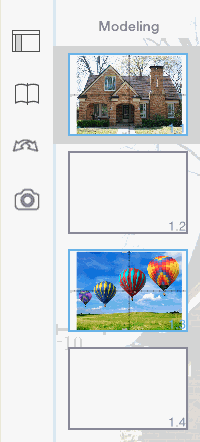
| 2. | Tap the Page Sorter icon or anywhere on the screen to hide the pages. |
| ▶ | Press and hold a page to move to a different position. |
| 1. | Double tap on a page to see available options. |
| - | Cut |
| - | Copy |
| - | Delete |
| 1. | Tap once on the problem name to show all pages. |
| 2. | Tap once to on the problem name to hide all pages. |
| 1. | Tap twice on the problem name. |
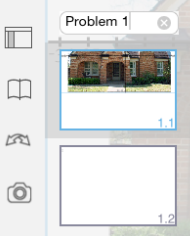
| 2. | The keyboard appears. |
| 3. | Type the new problem name. |
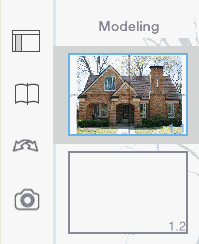
| 4. | Tap on the dismiss key  to hide (or dismiss) the keyboard. to hide (or dismiss) the keyboard. |
To switch to the previous page, or switch to the next page, swipe from the edge of a page.
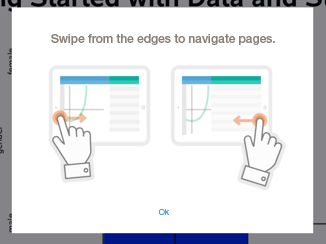
Note: The "Swipe from the edges to navigate pages." dialogue box will appear after a new installation or after an app update.