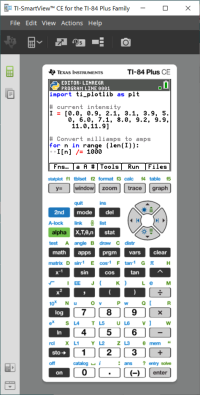
Using TI-SmartView™ CE and the Python Experience

This guidebook assumes the latest update of TI-SmartView™ CE. Update to the latest TI-SmartView™ CE at education.ti.com/84ceupdate.

The update includes the latest
TI-84 Plus CE Python emulator OS running the latest Python App. The updated modules of time,
ti_system, ti_plotlib, ti_rover* and ti_hub* are included.

Run the Python App on the
TI-84 Plus CE Python emulator.

• The Python App offers
– File Manager
– Editor
– Execution of your Python program in the Shell*

Hub/Rover Programs

– Create ti_hub/ti_rover Python programs in the CE emulator running the Python App.

* Note: There is no connectivity between TI-SmartView™ CE and
TI-Innovator™ Hub or TI-Innovator™ Rover. Programs can be created and then run on the CE calculator.

– Quit the Python App to prepare to transfer the Python AppVar(s) from the emulator. The emulator should not “be busy” running an App or program for the next step.
– Change to the Emulator Explorer workspace and send the program(s) to the computer.
– Use TI Connect™ CE to send the Python AppVars from the computer to the CE calculator for the TI-Innovator™ Hub/TI-Innovator™ Rover experience.

Note: To break a running Python program in the Shell, such as if a program is in a continuous loop, press [on]. Press [Tools] [zoom] > 6:New Shell as an alternate method to halt a running program.

Reminder: For any computer/TI-Python experience: After creating a Python program in a Python development environment on the computer, please validate your program runs on the calculator/emulator in the TI-Python experience. Modify the program as needed.

SmartPad CE App Remote Keypad

– When running the SmartPad CE App on your connected CE will behave as a remote keypad including the special keypad mapping offered when the Python App is running.

Emulator Explorer Workspace

– Please quit the Python App so the emulator is not busy when you access the full features of the Emulator Explorer workspace.
– program.py < > PY AppVar conversions are allowed. This is similar to the
TI Connect™ CE experience when sending programs to the connected CE calculator.
– When sending a program.py file created in another Python environment, your PY AppVar will need to be edited to run as expected in TI-Python. Use the Python App Editor to modify as needed for the unique modules such as
ti_plotlib, ti_system, ti_hub and ti_rover.

Data Import Wizard

– *.csv files of data, formatted as stated in the wizard dialog, will convert data into CE list variables. Methods in ti_system can then be used to share lists between the emulator CE OS and the Python App. This feature is similar to the Data Import Wizard in TI Connect™ CE.
- If decimal numbers are represented with the use of comma in the *.csv file, the file will not convert using the Data Import Wizard. Please check your computer operating system number formatting and convert the *.csv to use the decimal point representation. The CE calculator list and matrix editor use the number format as, for example, 12.34 and not 12,34.