In the Documents Workspace, teachers and students can use the “drag and drop” method to quickly transfer files and folders from a computer to a handheld or transfer files from a handheld to a computer.
Note: You must be running v5.0 or later of the TI-Nspire™ software in order to transfer to or from TI-Nspire™ CX II handhelds.
| 1. | Connect the handheld to the computer using a standard A to mini-B USB cable. |
| 2. | In the TI-Nspire™ software, open the Documents Workspace. |
| 3. | In the Documents Toolbox, click  to open the Content Explorer. to open the Content Explorer. |
|
|
Computer panel
Connected Handhelds
|
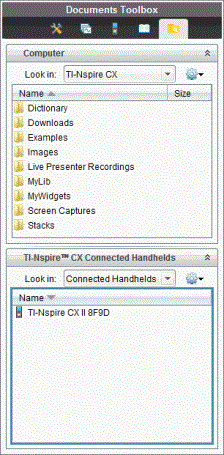
| 4. | Navigate to the folder that contains the file you want to transfer. |
| • | To transfer a file from a handheld to the computer, click the file, and then drag the file to a folder in the Computer panel. |
| • | To transfer a file from the computer to a handheld, click the file, and then drag the file to a connected handheld. |
Note: Those using the TI-Nspire™ CX Premium Teacher Software or the TI-Nspire™ CX Navigator™ Teacher Software can also use options in the Content Workspace to transfer files from a handheld to a computer.
Using the Save to Handheld Option
In the Documents Workspace, you can also use the Save to Handheld option on the File menu to transfer a file to a connected handheld when you want to save a file to a specific folder on the handheld.
| 1. | Ensure the handheld is connected to the computer. |
| 2. | In the Computer panel, navigate to the folder where the file is located. |
| 3. | Click the file. |
| 4. | Click File > Save to Handheld. The Save to Handheld dialog box opens. |
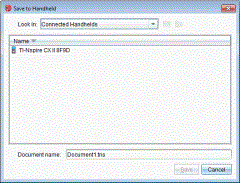
| 5. | Double-click the handheld name, and then navigate to the folder where you want to save the file. |
| 6. | Click Save. The file is saved to the selected folder and the Save to Handheld dialog box closes. |