You can change the emulator options, even when the emulator panel is closed.
| 1. | In the teacher software, click File > Settings > TI-SmartView™ Options. |
The TI-SmartView™ Options dialog box opens.

In the student software, click File > Settings > Keypad Options.
The Keypad Options dialog box opens.
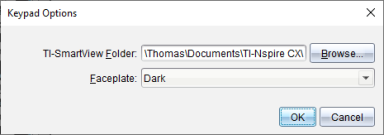
| 2. | Click Browse to change the folder where documents are saved and accessed in the My Documents folder when using the emulator. |
Important: If you change the TI-SmartView™ location, you must also copy or move the MyLib folder and paste it to the new location to see library objects.
The default location of MyLib is:
| • | Windows®: Documents\TI-Nspire\MyLib. |
| • | Mac®: Documents/TI-Nspire/MyLib. |
Note: Close and reopen the TI-Nspire™ application for the libraries to reflect the change.
| 3. | Click ¤ to open the menu and select a faceplate. |
| 4. | In the teacher software, click ¤ to open the menu and select a view. If selecting Handheld Only, select Always in Front to keep this window on top of all other open applications. |
| 5. | Click OK to save the settings. |