|
1.
|
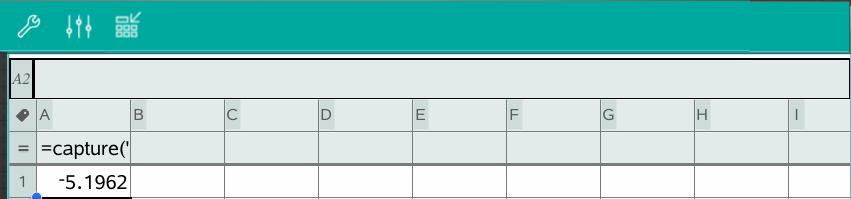
Tap the column formula cell (the second cell from the top) of the column in which you want to capture the values. |
Captured values replace values in the column.
|
2.
|
Tap  and go to . and go to . |
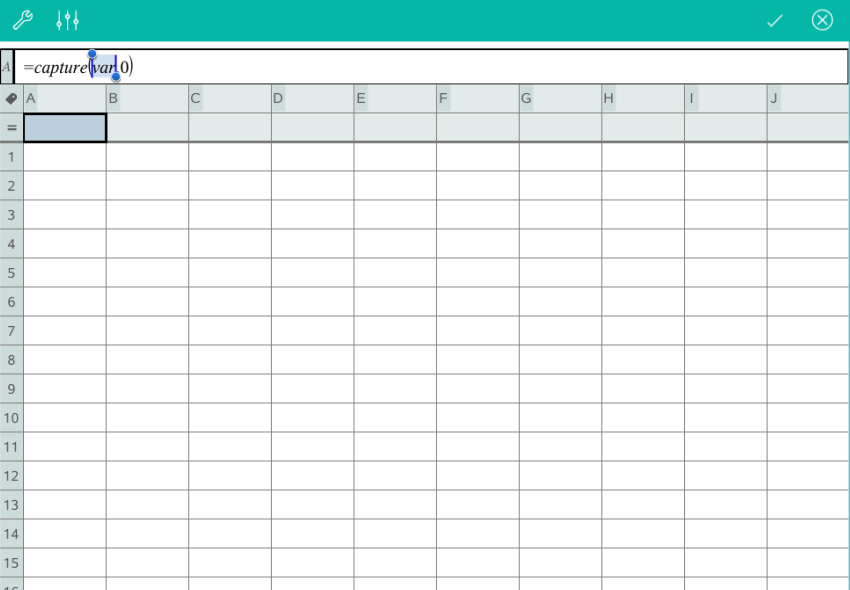
A capture expression is inserted into the column formula cell with "var" as a placeholder for the name of the variable you are capturing.
|
3.
|
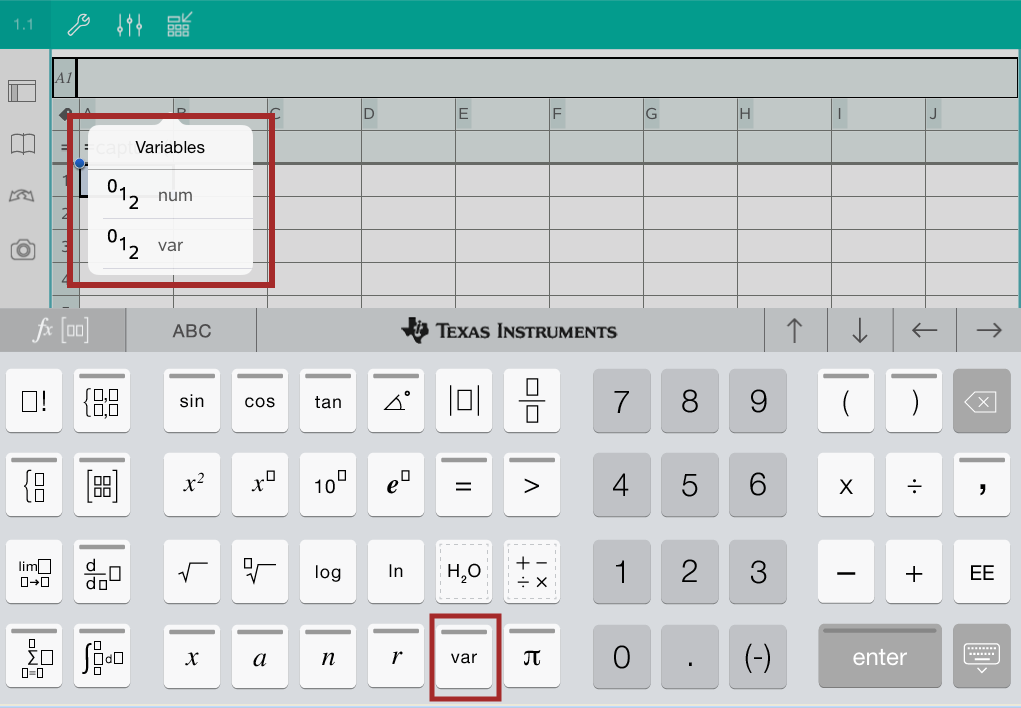
Replace the letters “var” with the name of the variable to capture from Graphs & Geometry. For example, type or to view a list of available variables, tap on the TI-Nspire™ Keyboard. |
The formula cell now contains an expression similar to =capture(a,0).
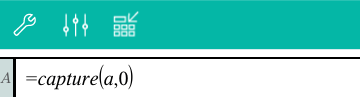
The argument “0” tells Lists & Spreadsheet that you want to trigger each capture manually.
|
5.
|
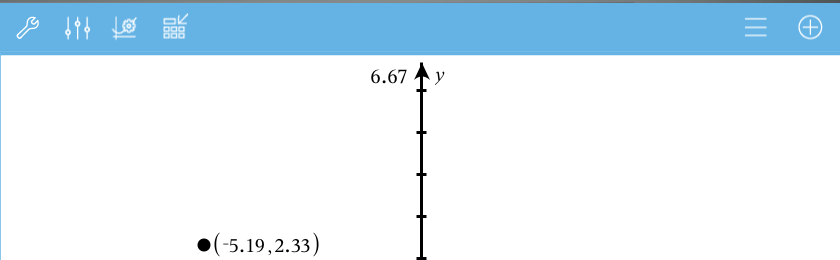
From the Graphs & Geometry application, move the point to a different location where x coordinate of the point is stored in a variable (a, in this example) referenced in the data capture expression. |
|
6.
|
Tap  . . |
The current a value is stored in the Lists & Spreadsheet application configured to capture the variable a.
See Using Variables for more information on adding and using variables.
 Capturing Data Manually