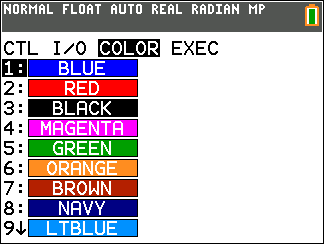
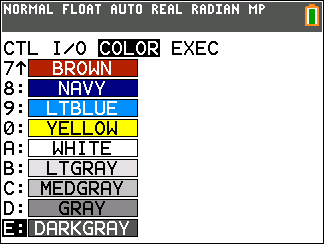
The purpose of this table of information is to provide a short description with syntax of command arguments as appropriate and menu locations for each command or function in the catalogue listing in the calculator.
This table is useful for executing commands when using the calculator or creating TI-Basic programs.
Items whose names are not alphabetic (such as +, !, and >) are listed in the Arithmetic Operations, Test Relations, and Symbols section. Unless otherwise specified, all examples in this section were performed in the default reset mode, and all variables are assumed to be the default value of 0.
From the catalogue you can paste any function or command to the home screen or to a command line in the program editor.
The same syntax information for function and command arguments below is available on the calculator and also in the TI Connect™ CE Program Editor.
| • | On the calculator, pressing [+] when a function or command is highlighted in the menu listing will display the catalogue Help syntax editor to assist your entries. |
| • | Using TI Connect™ CE Program Editor, the catalogue listing also displays the syntax of the arguments for functions and commands. |
Note that some functions and commands are only valid when executed in a TI-Basic program and not from the home screen.
The items in this table appear in the same order as they appear in the catalogue (y [catalogue].)
In the table below, the † symbol indicates either keystrokes or certain commands which are only available in the Program Editor mode on the calculator. Press ¼ and select to EDIT an existing program or NEW to start a new programme to set the calculator in the Program Edit mode.
Some arguments are optional. Optional arguments will be indicated within [ ] in the syntax help given in the table below. [ ] are not symbols on the calculator and are not to be typed in. They are used here only to indicate an optional argument.
On the calculator, functions and commands paste as "tokens." This means they paste as one character and not as individual letters, symbols and spaces. Do not attempt to type in any function or command on the calculator. Just paste the token from menu locations. Watch the cursor jump over tokens as you edit to get a better understanding of tokens.
In TI Connect™ CE Program Editor, you can "feel" the same experience of pasting tokens when using the catalogue tree provided in that editor. You also can type in the functions and commands if you know the correct format and syntax. TI Connect™ CE "tokenises" the functions and commands when you send the programme to the calculator. However, you must type in the functions and commands in exactly the same way as the tokens. Note that some commands will have spaces as part of the token which you might not see. For example, Pause command as a token has a space at the end. Once you send the programme to the calculator, you can run the programme and if there are any syntax errors, you can fix the issues on either the calculator or in TI Connect™ CE Program Editor.
|
CTL |
I/O |
COLOUR |
EXEC |
|
|---|---|---|---|---|
|
|
|
Colour Numbers |
Names |
|
|
|
|
10 |
BLUE |
|
|
|
|
11 |
RED |
|
|
|
|
12 |
BLACK |
|
|
|
|
13 |
MAGENTA |
|
|
|
|
14 |
GREEN |
|
|
|
|
15 |
ORANGE |
|
|
|
|
16 |
BROWN |
|
|
|
|
17 |
NAVY |
|
|
|
|
18 |
LTBLUE |
|
|
|
|
19 |
YELLOW |
|
|
|
|
20 |
WHITE |
|
|
|
|
21 |
LTGREY |
|
|
|
|
22 |
MEDGREY |
|
|
|
|
23 |
GREY |
|
|
|
|
24 |
DARKGREY |
|
You can also choose a name in the ½ menu (COLOUR sub-menu).
|
|
|
GraphColour(function#,colour#)
For example, GraphColour(2,4) or GraphColour(2,MAGENTA).