Pairing TI-Rover BT with a compatible calculator
| 1. | Plug the TI Bluetooth® Adapter into the USB port of a compatible calculator. |
| 2. | Turn on the power to the calculator and the TI-Rover BT. |
| 3. | On your calculator select Python and choose the configuration file. For TI-84 Evo, find the file titled, CFGRVRBT.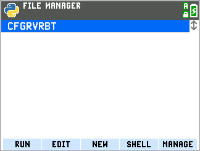 This is the file that will find available TI-Rover BT's and lets you choose which one to associate the connected TI Bluetooth® Adapter to. Run the program, follow the prompts to connect your calculator to an available TI-Rover BT. |
| 4. | Once connected, quit the CFGRVRBT program. If for some reason the program doesn't respond, you can always quit any program by pressing the On key a few times until the program quits. |
| 5. | Once you are back to the File Manager screen, you can choose already made programs or create a new program. To create a new program, select New, give your program a name, and then select OK.That will take you to the Editor where programs are written.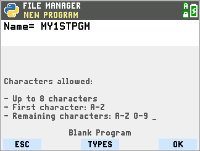 To write your program, select, FNS... (functions) and then scroll to MODULE and choose, ti_rover_bt. Now choose import ti_rover_bt as rv as the first line in your program. This is the import statement which enables the calculator to know that it's working with a TI-Rover BT. 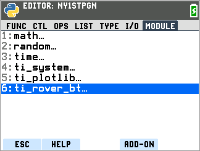 |
| 6. | Now you'll repeat the process to add lines of code to your program. You'll mostly be repeating many of the same steps as above... Choose FNS..., go to MODULE... select ti_rover_bt to find commands and methods for your TI-Rover BT device. Scroll across the top of the menu to see options for Drive, Math Drive, I/O, and Commands. |